Font Awesome 5 と SVG アイコンの紹介

関連記事: We're upgrading our icons to Font Awesome 6!

まもなく、Discourse を Font Awesome 5.5.0(無料版)にアップグレードし、アイコンフォントの代わりに SVG アイコンを使用するように切り替えるブランチmaster ブランチにマージします。これは大きな変更であり、多くの利点をもたらしますが、開発者にとって重要な変更も含まれています。

以下に、変更点の概要を示します。

  • SVG アイコンを使用することで、より鮮明なアイコン、アクセシビリティの向上、カスタマイズの容易さが実現します。詳細については、こちらの GitHub 記事をご覧ください。
  • Font Awesome アイコンセットはバージョン 5 で 1300 以上まで増加したため、クライアントに対してすべての FA アイコンのサブセット(つまり、その Discourse インスタンスで使用されているアイコンのみ)を配信する内部 API を構築しました。
  • おかげでサブセットのサイズは小さくなりました。Meta サイトですでに動作しており、FA 4.7 のアイコンフォントの 75.7 kb に対し、わずか 27.5 kb です。
  • プラグインやテーマ(テーマコンポーネントを含む)は、追加の FA アイコンをセットに追加できます。
  • グループのフラアとバッジのアイコンは自動的にセットに含まれます。また、サイト管理者は新しいサイト設定 svg icon subset を使用して、選択したアイコンを登録し、サイトのサブセットに追加することもできます。
  • 破壊的変更: プラグインやテーマの開発者は、<i class="fa fa-icon"></i> の使用や :before 疑似セレクターのオーバーライドによるアイコンの参照/置換ができなくなりました。これらは、ページに SVG を注入する Discourse 関数を使用するように置き換える必要があります。

以下に、プラグインやテーマを新しいセットのアイコンを使用するように更新する方法に関する手順を示します。

Font Awesome 5 の新機能

Font Awesome 5 では多くの新しいアイコンが追加されましたが、命名規則の変更も行われました。変更点の完全な議論については、Font Awesome のアップグレードドキュメントをご覧ください。主な変更点は、FA のアイコンが現在、個別のスタイルで提供されるようになったことです。スタイルは以下の 3 つです。

  1. solid(デフォルト)-- fas
  2. regular – far
  3. brands – fab

regular または brands スタイルを使用するには、FA 5 で新しいクラスプレフィックス「far」と「fab」が導入されました。したがって、regular または brands スタイルのアイコンを使用するには、新しい命名規則 "far fa-address-book" または "fab fa-facebook" を使用する必要があります。(solid アイコンは以前と同様に「fa-icon-name」として参照できます)。

3 つのスタイルを 1 つの SVG スプライトにバンドルできるようにするため、Discourse 内では regular およびブランドスタイルのアイコンが far-icon-name および fab-icon-name に変換されます。プラグイン、テーマ、グループフラア、バッジは、標準の FontAwesome 5 命名規則を使用できます。svg icon subset サイト設定を通じてアイコンをセットに追加するサイト管理者は、内部命名規則を使用する必要があります。

開発者向け:プラグインまたはテーマで SVG アイコンを使用または追加する方法

  1. 新しいアイコンの追加

    プラグイン:

    プラグインの plugin.rb ファイルでアイコンを登録します。

    register_svg_icon "user-times" if respond_to?(:register_svg_icon)
    

    (注:この変更を反映するには、開発環境で Rails サーバーを再起動する必要があります。)

    テーマまたはコンポーネント:

    _icon を含む名前の文字列またはリスト設定を追加します。例:

    svg_icons: 
      default: 'question-circle|wallet'
      type: 'list'
      list_type: 'compact'
    

    これにより、Discourse はそのテーマ設定で定義されたアイコンをサブセットに含めます。

  2. JavaScript でのアイコンの使用

    プラグイン:

    import { iconNode } from "discourse-common/lib/icon-library";
    ...
    let icon = iconNode('user-times');
    

    または iconHTML ヘルパーを使用します。

    import { iconHTML } from "discourse-common/lib/icon-library";
    ...
    let icon = iconHTML('user-times');
    

    テーマまたはコンポーネント:

    const { iconNode } = require("discourse-common/lib/icon-library");
    ...
    let icon = iconNode('user-times');
    

    または iconHTML ヘルパーを使用します。

    const { iconHTML } = require("discourse-common/lib/icon-library");
    ...
    let icon = iconHTML('user-times');
    

    これらのヘルパーは、title や class などのプロパティを持つ 2 番目のパラメータも受け取ります。これはプラグインとテーマ/コンポーネントで同じように機能します。例:

    iconHTML('user-times', { class: "reply-to-glyph" })
    
  3. Handlebars テンプレートでのアイコンの使用
    Handlebars テンプレートでは、以下のように d-icon を使用できます。

    {{d-icon 'user-times'}}
    

    これはプラグインとテーマ/コンポーネントでも同じように機能します。

カスタムアイコンの追加

FontAwesome で利用可能なもの以上のアイコンが必要な場合は、プラグインまたはテーマで独自の SVG アイコンを追加できます。スプライトの構造の例については、こちらの SVG スプライト をご覧ください。(これは、それぞれ固有の ID を持つ <symbol> 要素のリストです)。

テーマおよびコンポーネントの場合: /assets フォルダに SVG スプライトを追加し、about.json で変数名 icons-sprite を使用して参照します。my-icons.svg という名前のスプライトの場合、assets.json には以下を含める必要があります。

"assets": {
   "icons-sprite": "/assets/my-icons.svg"
}

UI を通じてテーマまたはコンポーネントに SVG スプライトを追加することもできます。その際、SCSS 変数名が icons-sprite に設定されていることを確認してください。スクリーンショット:

プラグインの場合: plugins/your-plugin-name/svg-icons フォルダに SVG スプライトファイルを Simply 含めます。サーバーを再起動(開発中の場合)または Docker コンテナの場合はサイトを再構築すると、カスタムアイコンが自動的に利用可能になります。

Font Awesome のアイコン ID との競合を避けるため、プラグインまたはテーマのカスタムアイコンの ID にはプレフィックスを付ける必要があります。

「いいね!」 80

Could someone elaborate on how to update a theme component? I’m very green at this and haven’t been able to make sense of all this. I’m currently using as such:

<a href="javascript:history.back()" class="app-go-back"><i class="fas fa-arrow-left" aria-hidden="true"></i></a>

This may be unrelated, but the following css has broken since the latest build:

.b-header .nav-pills > li:nth-child(3) a::before{
	content: "\f1ea";
}

As you can see here, only this one icon has broken, I double checked and f1ea is still valid in FA5. Is there a better way to achieve this with the new changes?

「いいね!」 2

From what I can see all of the icons are broken:

「いいね!」 2

Hmm interesting, they must be cached on my side. Is the option of using this gone now @pmusaraj?

「いいね!」 2

For HTML code directly, you can replace:

<i class="fas fa-arrow-left" aria-hidden="true"></i>

with:

<svg class="fa d-icon d-icon-arrow-left svg-icon svg-node" aria-hidden="true"><use xlink:href="#arrow-left"></use></svg>

Note that “arrow left” is in two places, in the class and in the <use> tag. Also, this icon is in the solid style in FA5, but for icons in regular or brands, you need to use the prefixes far- and fab-, respectively.

In your header links, you can’t use :before anymore, because SVG sprites can’t be added to pseudo selectors. But you can use this component: Header submenus (it’s been updated recently, and is FA5-compatible).

「いいね!」 15

Good job. :ok_hand:

How can I change this code to work with Font Awesome 5?

 a[href="/new"]:before {
      display: inline-block;
      font-family: FontAwesome;
      font-style: normal;
      font-weight: normal;
      line-height: 1;
      -moz-osx-font-smoothing: grayscale;
      content: "\f0ca";
      margin-right: 3px
    }
「いいね!」 2

What is creating this a[href="/new"] element? If you are adding it in your theme, via JS, then it’s easier to add the icon there, instead of using the CSS pseudo selector. One of iconHTML or iconNode above should do the trick.

「いいね!」 5

I’m very confused. I tried this and it worked:

But when I switched “left” to “right” in both places, it didn’t work. Am I missing something? Here’s the code I tried:

<svg class="fa d-icon d-icon-arrow-right svg-icon svg-node" aria-hidden="true"><use xlink:href="#arrow-right"></use></svg>

(I was actually trying to get the church icon to work, so if that’s going to require something else, let me know.)

「いいね!」 1

The arrow-right icon is not included by default (because it isn’t used elsewhere in Discourse), so you will need to add it to the svg icons subset site setting. Same for the church icon. (FA5 comes with thousands of icons, so we use a subset to avoid loading all the icons all the time. It saves precious bytes :slight_smile:)

「いいね!」 17

Makes complete sense. Thanks much.

「いいね!」 2

I was banging my head against the wall trying to figure out why the right arrow wasn’t displaying last night! FYI I don’t if this is because it is a work in progress, but the instructions say to use far but this did not display the icon, I had to add it as fa-right-arrow for it to display.

「いいね!」 3

Sorry about that, I have updated the description text for that setting to include: “Use prefix ‘fa-’ for solid icons, ‘far-’ for regular icons and ‘fab-’ for brand icons.”

「いいね!」 8

I want to add icons to the navigation bar – and I used a[href="/new"] for meta.discourse.org/new or a[href="/categories"] for meta.discourse.org/categories

// Add Font Awesome 5 Icons to the navigation bar

a[href="/new"]:before {
  font-family: "Font Awesome 5 Free";
  font-weight: 900;
  content: "\f007";
  display: inline-block;
  font-style: normal;
  font-variant: normal;
  text-rendering: auto;
  line-height: 1;
  margin-right: 3px;
  -webkit-font-smoothing: antialiased;
}

But I’m doing something wrong and it’s not working.

「いいね!」 2

We are no longer using Font Awesome as a font, so using the old method of pseudo selectors in CSS will not work.

If you don’t want to touch javascript and want a CSS-only solution, you can use an SVG as an image:

a[href="/new"]:before {
   content: url(/link-to-file.svg);
  // display inline-block, etc still needed
}

or you can inline the SVG’s code (which I believe has some compatibility issues with older browsers)

a[href="/new"]:before {
   content: url('data:image/svg+xml; utf8, <svg xmlns="http://www.w3.org/2000/svg" aria-hidden="true" data-prefix="fas" data-icon="grin-tongue-wink" class="svg-inline--fa fa-grin-tongue-wink fa-w-16" role="img"  height="25" width="25" viewBox="0 0 496 512"><path fill="white" d="M344 184c-13.3 0-24 10.7-24 24s10.7 24 24 24 24-10.7 24-24-10.7-24-24-24zM248 8C111 8 0 119 0 256c0 106.3 67 196.7 161 232-5.6-12.2-9-25.7-9-40v-45.5c-24.7-16.2-43.5-38.1-47.8-63.8-2-11.8 9.3-21.5 20.7-17.9C155.1 330.5 200 336 248 336s92.9-5.5 123.1-15.2c11.5-3.7 22.6 6.1 20.7 17.9-4.3 25.7-23.1 47.6-47.8 63.8V448c0 14.3-3.4 27.8-9 40 94-35.3 161-125.7 161-232C496 119 385 8 248 8zm-56 225l-9.5-8.5c-14.8-13.2-46.2-13.2-61 0L112 233c-8.5 7.4-21.6.3-19.8-10.8 4-25.2 34.2-42.1 59.9-42.1S208 197 212 222.2c1.6 11.1-11.6 18.2-20 10.8zm152 39c-35.3 0-64-28.7-64-64s28.7-64 64-64 64 28.7 64 64-28.7 64-64 64zm-50.9 102.6c-14.4-6.5-31.1 2.2-34.6 17.6l-1.8 7.8c-2.1 9.2-15.2 9.2-17.3 0l-1.8-7.8c-3.5-15.4-20.2-24.1-34.6-17.6-.9.4.3-.2-18.9 9.4v63c0 35.2 28 64.5 63.1 64.9 35.7.5 64.9-28.4 64.9-64v-64c-19.5-9.6-18.2-8.9-19-9.3z"></path></svg>');
}
「いいね!」 8

I’ve hacked my way through this and I’ve got everything working again except the right arrow on my mobile navigation component for the app, I can’t get it to right align to save my life. I tried using flex with flex-end to no avail. Please forgive my horrible attempt at this…

Here is my components code:
/body

/body
<div id="mobilenav">
<a href="javascript:history.back()" class="app-go-back">Back</a>
<a href="javascript:history.forward()" class="app-go-forward">Forward</a>
		<div id="mobilenavleft">
			<svg class="fa d-icon d-icon-arrow-left svg-icon svg-node" aria-hidden="true">
			<use xlink:href="#arrow-left"></use>
		</svg>
	</div>
		<div id="mobilenavright">
			<svg class="fa d-icon d-icon-arrow-right svg-icon svg-node" aria-hidden="true">
			<use xlink:href="#arrow-right"></use>
	</svg>
</div>
CSS
@media only screen and (min-width:1024px) {
div#mobilenav {
            display: none !important;
        }
}

/* move up compose window on mobile */
@media only screen and (max-width:1024px) {
#reply-control.open.edit-title {
            margin-bottom: 29px;
            height: 85%;
            margin-top: -29px;
        }

.timeline-container.timeline-fullscreen.show {
            margin-bottom: 29px;
        }
#reply-control.open {
            margin-bottom: 29px;
        }
.docked-composer .docked-editor {
    margin-bottom: 29px;
}
#topic-progress {
    margin-bottom: 33px;
}
.sticky-footer {
    margin-bottom: 33px;
}
}

/* display on ipad in landscape orientation */
@media only screen 
and (min-device-width : 768px) 
and (max-device-width : 1024px) 
and (orientation : landscape) {
div#mobilenav {
            display: block;
        }
}

div#mobilenav {
box-shadow: 0px -1px 5px 0px rgba(0,0,0,0.15);
position: fixed;
bottom: 0px;
width: 100%;
height: auto;
border: none;
z-index: 99999999999;
background-color: #2A2B2F;
}

.app-go-forward {
text-align: right;
padding: 5px 3%;
width: 44%;
float: right;
display: inline-block;
}

.app-go-back {
text-align: left;
padding: 5px 7%;
width: 44%;
float: left;
display: inline-block;
}

div#mobilenav {
display: flex;
flex-direction: row;
flex-wrap: nowrap;
}

div#mobilenavleft {
box-shadow: 0px -1px 5px 0px rgba(0,0,0,0.15);
position: fixed;
bottom: 0px;
width: 1%;
height: auto;
border: none;
z-index: 99999999999;
padding-bottom: 4px;
padding-left: 5px;
}

div#mobilenavright {
box-shadow: 0px -1px 5px 0px rgba(0,0,0,0.15);
position: fixed;
bottom: 0px;
width: 1%;
height: auto;
border: none;
z-index: 99999999999;
padding-bottom: 4px;
padding-right: 5px;
justify-content: flex-end;
}

If anyone wants to help, my site is here and this component only displays below 1024px obviously. The left arrow looks perfect and the right arrow should mirror this.

「いいね!」 1

It’s because you’re using position: fixed on the arrow, if you add

div#mobilenavright {
  right: 5px;
}

Then it should be where you want it.

Sidenote: You don’t really need to use position: fixed for those arrows at all because they’re already within a fixed container, if you put the arrows inside of your a tags containing the “forward” and “back” text the layout might be a bit easier to manage in general.

「いいね!」 10

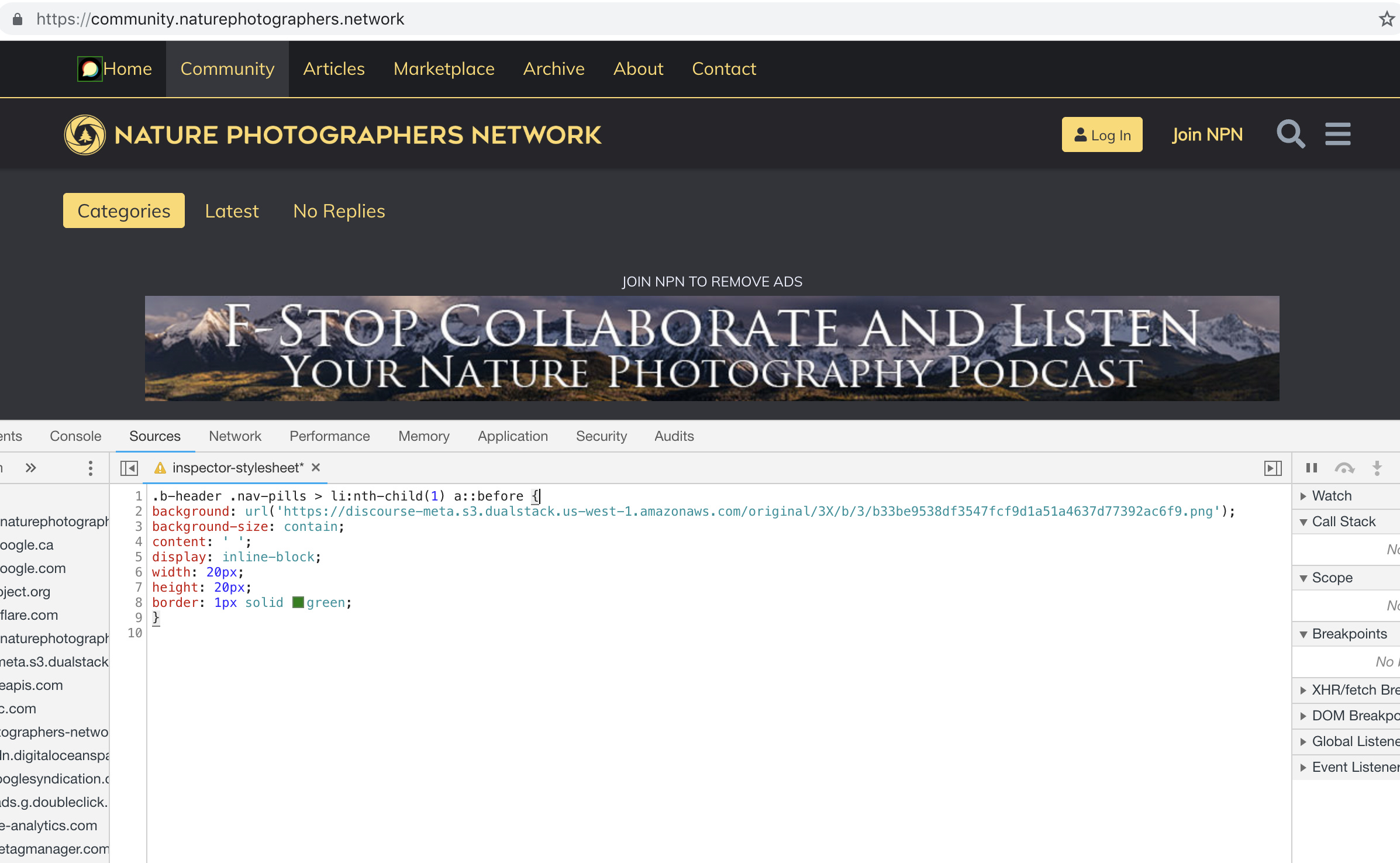
I’m trying to use this with the Brand Header Theme Component but not having any success with this:

.b-header .nav-pills > li:nth-child(1) a::before{
content: url(https://npn.sfo2.cdn.digitaloceanspaces.com/misc/home-solid.svg);
display: inline-block;
width: 20px;
height: 20px;}

I’ve also tried:

.b-header .nav-pills > li:nth-child(1) a::before {
display: block;
  content: ' ';
  background-image: url('https://npn.sfo2.cdn.digitaloceanspaces.com/misc/home-solid.svg');
  background-size: 20px 20px;
  height: 20px;
  width: 20px;
}

Anyone have ideas?

「いいね!」 2

Something is wrong with your SVG image. The screenshot below works with the Discourse logo, but not with that SVG file:

「いいね!」 2

It might be because the SVG doesn’t have any height/width defined (in the SVG markup itself, not the CSS)

Can you right click this one below, save it, and try again… I’ve added some dimensions to it.

home-solid

「いいね!」 8

This does seem to work, dare I ask how? Also, fill: does not seem to work on this to change the color, it just displays as black.

For reference, my code:

.b-header .nav-pills > li:nth-child(1) a::before {
display: inline-block;
content: ' ';
background: url('https://d11a6trkgmumsb.cloudfront.net/original/3X/a/6/a61b08e7f318170faee755cb6dcd48d6f6d7413d.svg');
background-size: contain;
height: 20px;
width: 20px;
border: 1px solid blue;
fill: blue;

}

「いいね!」 2