En la ventana modal de flujo de trabajo personalizado, busca webhook y selecciona el desencadenador Cuando se recibe una solicitud de webhook de Teams.
Publicar como: Elige de quién deben proceder los mensajes; puedes dejarlo en el valor predeterminado o elegir Usuario para que el mensaje aparezca como enviado por ti.
Publicar en: Selecciona Canal, lo que hará que aparezcan más campos:
Equipo: Selecciona el equipo deseado.
Canal: Selecciona el canal deseado.
Tarjeta adaptable: Haz clic en la entrada, lo que abrirá una ventana emergente (descrita en el siguiente paso).
Haz clic dentro del campo Tarjeta adaptable para abrir una ventana emergente [2] para insertar contenido dinámico o una expresión. Cambia a la pestaña Expresión y escribe triggerBody() en el campo de expresión.
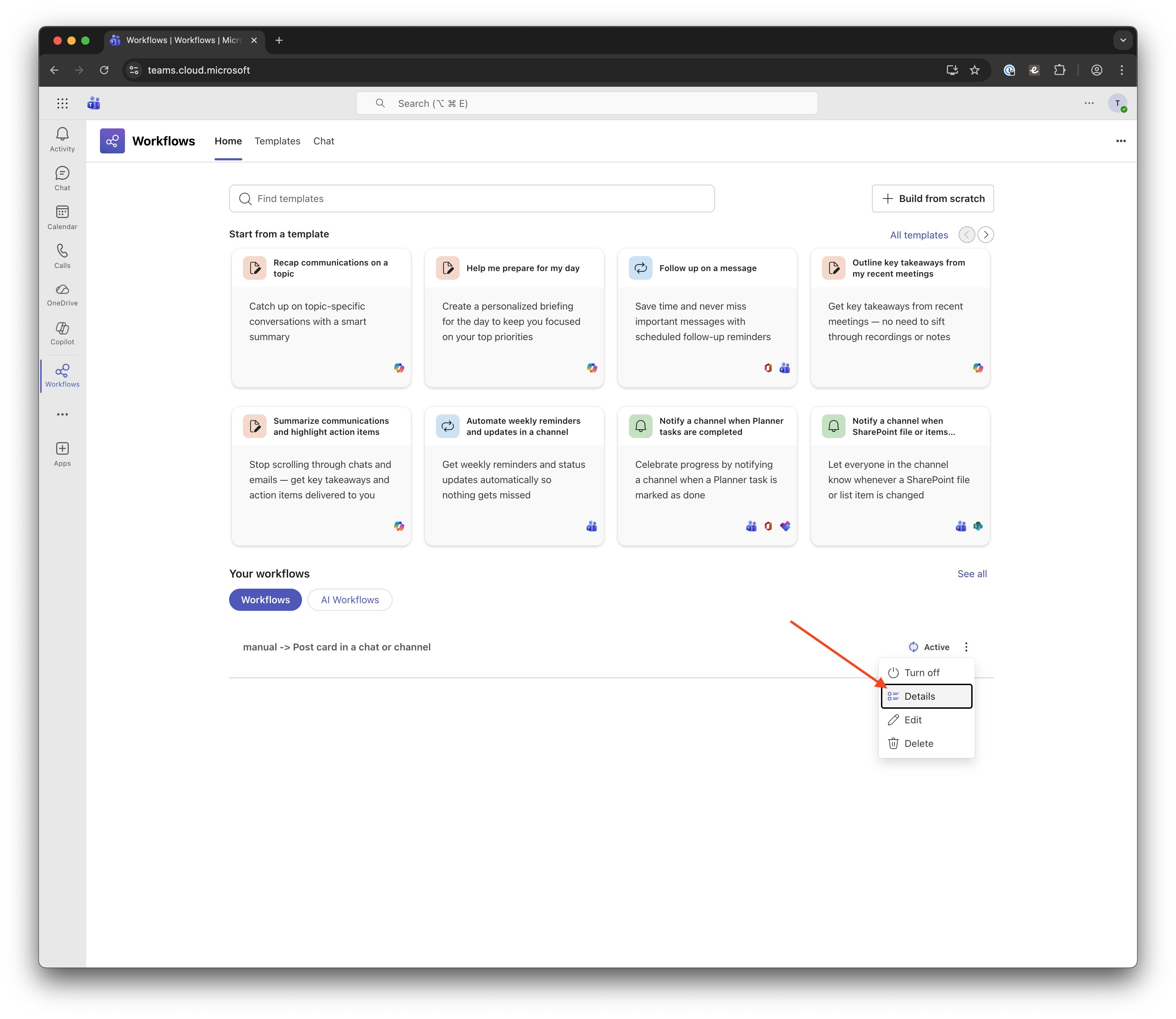
Ahora deberías ver un flujo de trabajo llamado manual → Publicar tarjeta en un chat o canal en tu lista. Haz clic en el botón de elipsis vertical de este flujo de trabajo y selecciona Detalles en el menú desplegable.
En esta página, haz clic en Copiar vínculo del webhook para obtener el enlace para los siguientes pasos. Mientras estás aquí, puedes editar opcionalmente el nombre del flujo de trabajo para reflejar su propósito para otros miembros de tu equipo.
En el área de administración de Discourse, habilita la configuración Chat integration enabled para activar el complemento de integración de chat y la configuración Chat integration Teams enabled para admitir Microsoft Teams.
Si no ves el mensaje en Microsoft Teams como esperabas, ve a la página Detalles del flujo de trabajo (consulta el paso 10 en la sección de configuración de Teams anterior) y comprueba la sección Historial de ejecuciones. Esto debería mostrar registros de cada ejecución del mensaje.
Haz clic en la ejecución fallida, lo que te llevará al área de Power Automate, donde podrás ver un mensaje de error en la parte superior de la página. (En la captura de pantalla siguiente, la ejecución fue exitosa, pero la flecha indica dónde aparecerá el error en una ejecución fallida).
si la ventana emergente no aparece, escribe algo temporalmente en el campo Tarjeta adaptable, guarda el flujo de trabajo, ábrelo de nuevo para editar y la ventana emergente debería aparecer ↩︎
Acabo de probarlo y pareció funcionar al principio, pero solo la primera vez que hice clic en el botón de prueba.
Las reglas están configuradas de la siguiente manera:
Tipo: normal
Filtro: Todos los temas (?) y respuestas (traduciendo del alemán)
Categoría: Sandbox
Cuando escribí una respuesta al tema de prueba en mi categoría Sandbox, apareció un signo de advertencia al ir a mis integraciones de chat, pero al hacer clic en el triángulo de advertencia dice error desconocido... con el mensaje de error siendo null.
Cuando intento enviar otra notificación de prueba, obtengo otro error: 500 error interno del servidor.
Cualquier pista sobre por dónde comenzar a solucionar este problema es bienvenida. Si esto debería publicarse en otro lugar (por ejemplo, en la página del plugin de integración de chat) o crearse como un tema separado, siéntete libre de moverlo en consecuencia o avísame.
Eso sugiere que tu servidor está teniendo problemas con la resolución de DNS. ¿Estás utilizando una instalación estándar basada en Docker? ¿O esto es en desarrollo?
Acabo de configurarlo hace aproximadamente una semana en un droplet separado de DigitalOcean (instalación en un solo clic; ahora estoy en la versión 2.6.0.beta1 (310952fd6a)). Uso un subdominio y tengo los registros DNS también en DigitalOcean. Tengo un registro A que apunta a la IP y un registro MX que apunta al nombre del subdominio para las respuestas por correo electrónico, tal como se indica en estas instrucciones. Lo único que me falta es un registro DMARC publicado.
Eso es todo lo que puedo recordar haber hecho en relación con la configuración DNS. Sin embargo, hasta ahora todo ha funcionado como se esperaba. El sitio está configurado, puedo acceder a él mediante el nombre del subdominio, iniciar sesión, crear temas (incluso por correo electrónico), etc.
Solo me sorprendió que el primer mensaje llegara, pero los siguientes no
Cuando hablo de resolución de DNS, me refiero a que tu servidor tiene problemas para contactar a outlook.office.com. La configuración de los registros DNS de tu foro no debería afectar eso.
¿Puedes intentar conectarte a tu servidor mediante SSH y ejecutar
host outlook.office.com
Deberías obtener algo como
outlook.office.com es un alias para substrate.office.com.
substrate.office.com es un alias para substrate.ms-acdc.office.com.
substrate.ms-acdc.office.com es un alias para afd-k.office.com.
afd-k.office.com es un alias para outlook-office-com.k-0002.k-msedge.net.
outlook-office-com.k-0002.k-msedge.net es un alias para k-0002.k-msedge.net.
k-0002.k-msedge.net tiene la dirección 13.107.18.11
k-0002.k-msedge.net tiene la dirección IPv6 2620:1ec:c::11
Trying "outlook.office.com"
Host outlook.office.com not found: 2(SERVFAIL)
Received 36 bytes from 127.0.0.53#53 in 43 ms
Al agregar el puerto :443, obtengo otro error:
Trying "outlook.office.com:443"
Host outlook.office.com:443 not found: 3(NXDOMAIN)
Received 40 bytes from 127.0.0.53#53 in 3 ms
Received 40 bytes from 127.0.0.53#53 in 3 ms
Para otros dominios como google.com o el dominio de mi instancia de Discourse en cuestión (h-da.transformative-praxis.cc), u otros sitios, obtengo la salida esperada, similar a la que describes.
He realizado algunas búsquedas sobre el primer error, pero aún no estoy seguro de su origen. He leído lo siguiente, pero no pude determinar si esto es realmente relevante para mi problema:
Seguí intentándolo y esta vez obtuve los resultados que describiste al escribir
host outlook.office.com
Así que todo parecía estar bien en ese momento. Lo repetí muchas veces seguidas para asegurarme (unas 15 veces con un intervalo de unos 10 segundos) y en algún momento obtuve el mismo error de servfail que antes. Pero la mayoría de las veces funcionó.
El caso contrario ocurre cuando intento enviar un mensaje de prueba. Quizás funcione una de cada diez veces. Las otras veces obtengo los mismos errores que antes. Y cuando publico un mensaje regular que cumple con la regla que configuré para el canal, no recibo ninguna notificación ni mensaje de error en los registros.
Simplemente parece tan aleatorio que no puedo averiguar qué lo causa.
Seguí sospechando de mi configuración con dos droplets para cada subdominio y dos registros A respectivos, más un conjunto de registros NS para mi dominio principal que apunta a ns1.digitalocean.com. Así que probé dnsstuff para mi sitio y obtuve un fallo en la verificación del registro SOA, y whatsmydns.net para mis registros NS, pero aún no pude encontrar ninguna conexión posible con mi problema.
En este punto estoy totalmente confundido sobre quién está causando el error: si soy yo por haber configurado mal algunos registros DNS (lo cual, según @david, no debería afectarlo), si son problemas de configuración del servidor, o si es simplemente MS-Teams (outlook.office.com) actuando de forma extraña o bloqueándome de alguna manera.
Agradecería cualquier sugerencia sobre qué puedo verificar o hacer para encontrar el error, incluyendo a dónde más acudir y preguntar, si crees que esto está más allá de lo que puedes ayudarme aquí.
Gracias @Dan_Turner, he relajado un poco nuestra validación, lo que debería ayudar a la situación. Por favor, pruébalo y dime si funciona mejor para ti
Necesitarás pedir a tu proveedor de alojamiento que actualice el plugin por ti. En discourse.org, este cambio ya se ha implementado para todos nuestros clientes, así que supongo que debes estar alojado en otro lugar.
Una gran mejora sería: añadir la mención de grupo en el mensaje para generar notificaciones en el lado de Teams.
Parece que la API de webhook no implementa (¿o implementaba?) esta función, pero algunos dicen que se ha implementado recientemente.
¿Crees que se podría implementar fácilmente?