Einführung von Font Awesome 5 und SVG-Icons

Siehe auch: We're upgrading our icons to Font Awesome 6!

Wir werden in Kürze einen Branch in master mergen, der Discourse auf Font Awesome 5.5.0 (die kostenlose Version) aktualisiert und auf die Verwendung von SVG-Icons statt einer Icon-Schriftart umstellt. Dies ist eine erhebliche Änderung mit vielen Vorteilen und einer signifikanten Änderung für Entwickler.

Hier ist eine kurze Übersicht der Änderungen:

  • Die Verwendung von SVG-Icons sorgt für schärfere Icons, ist besser für die Barrierefreiheit und einfacher anzupassen; weitere Details finden Sie in diesem GitHub-Artikel.
  • Da die Font Awesome-Icon-Sammlung in Version 5 auf über 1300 Icons angewachsen ist, haben wir eine interne API entwickelt, die Clients eine Teilmenge aller FA-Icons bereitstellt, nämlich nur die Icons, die von dieser Discourse-Instanz verwendet werden.
  • Die Teilmenge hat zum Glück eine kleinere Dateigröße: Sie läuft bereits hier in Meta und beträgt nur 27,5 kB im Vergleich zu den 75,7 kB der FA 4.7-Icon-Schriftart.
  • Plugins und Themes (einschließlich Theme-Komponenten) können zusätzliche FA-Icons zur Sammlung hinzufügen.
  • Gruppen-Flair- und Badge-Icons werden automatisch in die Sammlung aufgenommen, und Site-Administratoren können auch eine neue Site-Einstellung namens svg icon subset verwenden, um ihre gewählten Icons zu registrieren und zur Teilmenge ihrer Site hinzuzufügen.
  • Breaking Change: Plugin- und Theme-Entwickler können \u003ci class="fa fa-icon"\u003e\u003c/i\u003e nicht mehr verwenden oder die :before-Pseudoselektoren überschreiben, um auf Icons zu verweisen oder diese zu ersetzen. Stattdessen sollten nun Discourse-Funktionen verwendet werden, die SVGs in die Seite einfügen.

Im Folgenden finden Sie Anweisungen zur Aktualisierung von Plugins und Themes, um Icons aus dem neuen Set zu verwenden.

Was ist neu in Font Awesome 5?

Font Awesome 5 hat viele neue Icons eingeführt, aber auch einige Namensänderungen vorgenommen. Für eine vollständige Diskussion der Änderungen siehe die Font Awesome-Upgradedokumentation. Die Hauptänderung besteht darin, dass Icons in FA jetzt in separaten Stilen vorliegen. Es gibt drei Stile:

  1. solid (Standard) – fas
  2. regular – far
  3. brands – fab

Für die Styles regular oder brands führt FA 5 neue Klassenpräfixe ein, nämlich „far" bzw. „fab". Um ein Icon aus dem Style regular oder brands zu verwenden, müssen wir also diese neue Namenskonvention verwenden: \"far fa-address-book\" oder \"fab fa-facebook\". (Solid-Icons können einfach wie zuvor als „fa-icon-name" referenziert werden.)

Um das Bündeln der drei Stile in einem SVG-Sprite zu ermöglichen, werden Icons im Style regular und brand in Discourse intern in far-icon-name und fab-icon-name umgewandelt. Plugins, Themes, Gruppen-Flairs und Badges können die Standard-Namenskonvention von FontAwesome 5 verwenden. Site-Administratoren, die über die Site-Einstellung svg icon subset Icons zur Sammlung hinzufügen, müssen die interne Namenskonvention verwenden.

Entwickler: So verwenden oder fügen Sie ein SVG-Icon in Ihrem Plugin oder Theme hinzu

  1. Hinzufügen neuer Icons

    Plugins:

    Registrieren Sie das Icon in der Datei plugin.rb Ihres Plugins:

    register_svg_icon "user-times" if respond_to?(:register_svg_icon)
    

    (Hinweis: Sie müssen Ihren Rails-Server in Ihrer Entwicklungsumgebung neu starten, damit diese Änderung wirksam wird.)

    Themes oder Komponenten:

    Fügen Sie eine Zeichenketten- oder Listen-Einstellung mit einem Namen hinzu, der _icon enthält, zum Beispiel:

    svg_icons: 
      default: 'question-circle|wallet'
      type: 'list'
      list_type: 'compact'
    

    Discourse wird dann das/die in dieser Theme-Einstellung definierte(n) Icon(s) zur Teilmenge hinzufügen.

  2. Verwendung von Icons in Ihrem JavaScript

    Plugins:

    import { iconNode } from "discourse-common/lib/icon-library";
    ...
    let icon = iconNode('user-times');
    

    oder verwenden Sie den Helper iconHTML:

    import { iconHTML } from "discourse-common/lib/icon-library";
    ...
    let icon = iconHTML('user-times');
    

    Themes oder Komponenten:

    const { iconNode } = require("discourse-common/lib/icon-library");
    ...
    let icon = iconNode('user-times');
    

    oder verwenden Sie den Helper iconHTML:

    const { iconHTML } = require("discourse-common/lib/icon-library");
    ...
    let icon = iconHTML('user-times');
    

    Die Helper können auch einen zweiten Parameter mit Eigenschaften wie Titel oder Klasse entgegennehmen. Dies funktioniert in Plugins und Themes / Komponenten auf die gleiche Weise, zum Beispiel:

    iconHTML('user-times', { class: "reply-to-glyph" })
    
  3. Verwendung von Icons in Ihren Handlebars-Templates

    In Handlebars-Templates können Sie d-icon wie folgt verwenden:

    {{d-icon 'user-times'}}
    

    Dies funktioniert auch in Plugins und Themes / Komponenten auf die gleiche Weise.

Hinzufügen benutzerdefinierter Icons

Wenn Sie mehr Icons haben möchten als in FontAwesome verfügbar, können Sie Ihre eigenen SVG-Icons in einem Plugin oder einem Theme hinzufügen. Sehen Sie sich dieses SVG-Sprite als Beispiel an, wie Sie Ihr Sprite strukturieren können. (Es ist im Wesentlichen eine Liste von \u003csymbol\u003e-Elementen, jedes mit einer eigenen eindeutigen ID.)

In Themes und Komponenten: Fügen Sie das SVG-Sprite im Ordner /assets hinzu und verweisen Sie in about.json mit dem Variablennamen icons-sprite darauf. Für ein Sprite namens my-icons.svg sollte Ihre assets.json Folgendes enthalten:

"assets": {
   "icons-sprite": "/assets/my-icons.svg"
}

Sie können das SVG-Sprite auch über die Benutzeroberfläche zu einem Theme oder einer Komponente hinzufügen. Stellen Sie dabei sicher, dass der SCSS-Variablenname auf icons-sprite gesetzt ist. Screenshot:

In Plugins: Fügen Sie einfach eine SVG-Sprite-Datei im Ordner plugins/your-plugin-name/svg-icons hinzu. Starten Sie Ihren Server neu (wenn in der Entwicklung) oder erstellen Sie die Site in einem Docker-Container neu, und Ihre benutzerdefinierten Icons sollten automatisch verfügbar sein.

Um potenzielle Konflikte mit Font Awesome-Icon-IDs zu vermeiden, sollten Sie die IDs der benutzerdefinierten Icons in Ihrem Plugin oder Theme mit einem Präfix versehen.

80 „Gefällt mir“

Could someone elaborate on how to update a theme component? I’m very green at this and haven’t been able to make sense of all this. I’m currently using as such:

<a href="javascript:history.back()" class="app-go-back"><i class="fas fa-arrow-left" aria-hidden="true"></i></a>

This may be unrelated, but the following css has broken since the latest build:

.b-header .nav-pills > li:nth-child(3) a::before{
	content: "\f1ea";
}

As you can see here, only this one icon has broken, I double checked and f1ea is still valid in FA5. Is there a better way to achieve this with the new changes?

2 „Gefällt mir“

From what I can see all of the icons are broken:

2 „Gefällt mir“

Hmm interesting, they must be cached on my side. Is the option of using this gone now @pmusaraj?

2 „Gefällt mir“

For HTML code directly, you can replace:

<i class="fas fa-arrow-left" aria-hidden="true"></i>

with:

<svg class="fa d-icon d-icon-arrow-left svg-icon svg-node" aria-hidden="true"><use xlink:href="#arrow-left"></use></svg>

Note that “arrow left” is in two places, in the class and in the <use> tag. Also, this icon is in the solid style in FA5, but for icons in regular or brands, you need to use the prefixes far- and fab-, respectively.

In your header links, you can’t use :before anymore, because SVG sprites can’t be added to pseudo selectors. But you can use this component: Header submenus (it’s been updated recently, and is FA5-compatible).

15 „Gefällt mir“

Good job. :ok_hand:

How can I change this code to work with Font Awesome 5?

 a[href="/new"]:before {
      display: inline-block;
      font-family: FontAwesome;
      font-style: normal;
      font-weight: normal;
      line-height: 1;
      -moz-osx-font-smoothing: grayscale;
      content: "\f0ca";
      margin-right: 3px
    }
2 „Gefällt mir“

What is creating this a[href="/new"] element? If you are adding it in your theme, via JS, then it’s easier to add the icon there, instead of using the CSS pseudo selector. One of iconHTML or iconNode above should do the trick.

5 „Gefällt mir“

I’m very confused. I tried this and it worked:

But when I switched “left” to “right” in both places, it didn’t work. Am I missing something? Here’s the code I tried:

<svg class="fa d-icon d-icon-arrow-right svg-icon svg-node" aria-hidden="true"><use xlink:href="#arrow-right"></use></svg>

(I was actually trying to get the church icon to work, so if that’s going to require something else, let me know.)

1 „Gefällt mir“

The arrow-right icon is not included by default (because it isn’t used elsewhere in Discourse), so you will need to add it to the svg icons subset site setting. Same for the church icon. (FA5 comes with thousands of icons, so we use a subset to avoid loading all the icons all the time. It saves precious bytes :slight_smile:)

17 „Gefällt mir“

Makes complete sense. Thanks much.

2 „Gefällt mir“

I was banging my head against the wall trying to figure out why the right arrow wasn’t displaying last night! FYI I don’t if this is because it is a work in progress, but the instructions say to use far but this did not display the icon, I had to add it as fa-right-arrow for it to display.

3 „Gefällt mir“

Sorry about that, I have updated the description text for that setting to include: “Use prefix ‘fa-’ for solid icons, ‘far-’ for regular icons and ‘fab-’ for brand icons.”

8 „Gefällt mir“

I want to add icons to the navigation bar – and I used a[href="/new"] for meta.discourse.org/new or a[href="/categories"] for meta.discourse.org/categories

// Add Font Awesome 5 Icons to the navigation bar

a[href="/new"]:before {
  font-family: "Font Awesome 5 Free";
  font-weight: 900;
  content: "\f007";
  display: inline-block;
  font-style: normal;
  font-variant: normal;
  text-rendering: auto;
  line-height: 1;
  margin-right: 3px;
  -webkit-font-smoothing: antialiased;
}

But I’m doing something wrong and it’s not working.

2 „Gefällt mir“

We are no longer using Font Awesome as a font, so using the old method of pseudo selectors in CSS will not work.

If you don’t want to touch javascript and want a CSS-only solution, you can use an SVG as an image:

a[href="/new"]:before {
   content: url(/link-to-file.svg);
  // display inline-block, etc still needed
}

or you can inline the SVG’s code (which I believe has some compatibility issues with older browsers)

a[href="/new"]:before {
   content: url('data:image/svg+xml; utf8, <svg xmlns="http://www.w3.org/2000/svg" aria-hidden="true" data-prefix="fas" data-icon="grin-tongue-wink" class="svg-inline--fa fa-grin-tongue-wink fa-w-16" role="img"  height="25" width="25" viewBox="0 0 496 512"><path fill="white" d="M344 184c-13.3 0-24 10.7-24 24s10.7 24 24 24 24-10.7 24-24-10.7-24-24-24zM248 8C111 8 0 119 0 256c0 106.3 67 196.7 161 232-5.6-12.2-9-25.7-9-40v-45.5c-24.7-16.2-43.5-38.1-47.8-63.8-2-11.8 9.3-21.5 20.7-17.9C155.1 330.5 200 336 248 336s92.9-5.5 123.1-15.2c11.5-3.7 22.6 6.1 20.7 17.9-4.3 25.7-23.1 47.6-47.8 63.8V448c0 14.3-3.4 27.8-9 40 94-35.3 161-125.7 161-232C496 119 385 8 248 8zm-56 225l-9.5-8.5c-14.8-13.2-46.2-13.2-61 0L112 233c-8.5 7.4-21.6.3-19.8-10.8 4-25.2 34.2-42.1 59.9-42.1S208 197 212 222.2c1.6 11.1-11.6 18.2-20 10.8zm152 39c-35.3 0-64-28.7-64-64s28.7-64 64-64 64 28.7 64 64-28.7 64-64 64zm-50.9 102.6c-14.4-6.5-31.1 2.2-34.6 17.6l-1.8 7.8c-2.1 9.2-15.2 9.2-17.3 0l-1.8-7.8c-3.5-15.4-20.2-24.1-34.6-17.6-.9.4.3-.2-18.9 9.4v63c0 35.2 28 64.5 63.1 64.9 35.7.5 64.9-28.4 64.9-64v-64c-19.5-9.6-18.2-8.9-19-9.3z"></path></svg>');
}
8 „Gefällt mir“

I’ve hacked my way through this and I’ve got everything working again except the right arrow on my mobile navigation component for the app, I can’t get it to right align to save my life. I tried using flex with flex-end to no avail. Please forgive my horrible attempt at this…

Here is my components code:
/body

/body
<div id="mobilenav">
<a href="javascript:history.back()" class="app-go-back">Back</a>
<a href="javascript:history.forward()" class="app-go-forward">Forward</a>
		<div id="mobilenavleft">
			<svg class="fa d-icon d-icon-arrow-left svg-icon svg-node" aria-hidden="true">
			<use xlink:href="#arrow-left"></use>
		</svg>
	</div>
		<div id="mobilenavright">
			<svg class="fa d-icon d-icon-arrow-right svg-icon svg-node" aria-hidden="true">
			<use xlink:href="#arrow-right"></use>
	</svg>
</div>
CSS
@media only screen and (min-width:1024px) {
div#mobilenav {
            display: none !important;
        }
}

/* move up compose window on mobile */
@media only screen and (max-width:1024px) {
#reply-control.open.edit-title {
            margin-bottom: 29px;
            height: 85%;
            margin-top: -29px;
        }

.timeline-container.timeline-fullscreen.show {
            margin-bottom: 29px;
        }
#reply-control.open {
            margin-bottom: 29px;
        }
.docked-composer .docked-editor {
    margin-bottom: 29px;
}
#topic-progress {
    margin-bottom: 33px;
}
.sticky-footer {
    margin-bottom: 33px;
}
}

/* display on ipad in landscape orientation */
@media only screen 
and (min-device-width : 768px) 
and (max-device-width : 1024px) 
and (orientation : landscape) {
div#mobilenav {
            display: block;
        }
}

div#mobilenav {
box-shadow: 0px -1px 5px 0px rgba(0,0,0,0.15);
position: fixed;
bottom: 0px;
width: 100%;
height: auto;
border: none;
z-index: 99999999999;
background-color: #2A2B2F;
}

.app-go-forward {
text-align: right;
padding: 5px 3%;
width: 44%;
float: right;
display: inline-block;
}

.app-go-back {
text-align: left;
padding: 5px 7%;
width: 44%;
float: left;
display: inline-block;
}

div#mobilenav {
display: flex;
flex-direction: row;
flex-wrap: nowrap;
}

div#mobilenavleft {
box-shadow: 0px -1px 5px 0px rgba(0,0,0,0.15);
position: fixed;
bottom: 0px;
width: 1%;
height: auto;
border: none;
z-index: 99999999999;
padding-bottom: 4px;
padding-left: 5px;
}

div#mobilenavright {
box-shadow: 0px -1px 5px 0px rgba(0,0,0,0.15);
position: fixed;
bottom: 0px;
width: 1%;
height: auto;
border: none;
z-index: 99999999999;
padding-bottom: 4px;
padding-right: 5px;
justify-content: flex-end;
}

If anyone wants to help, my site is here and this component only displays below 1024px obviously. The left arrow looks perfect and the right arrow should mirror this.

1 „Gefällt mir“

It’s because you’re using position: fixed on the arrow, if you add

div#mobilenavright {
  right: 5px;
}

Then it should be where you want it.

Sidenote: You don’t really need to use position: fixed for those arrows at all because they’re already within a fixed container, if you put the arrows inside of your a tags containing the “forward” and “back” text the layout might be a bit easier to manage in general.

10 „Gefällt mir“

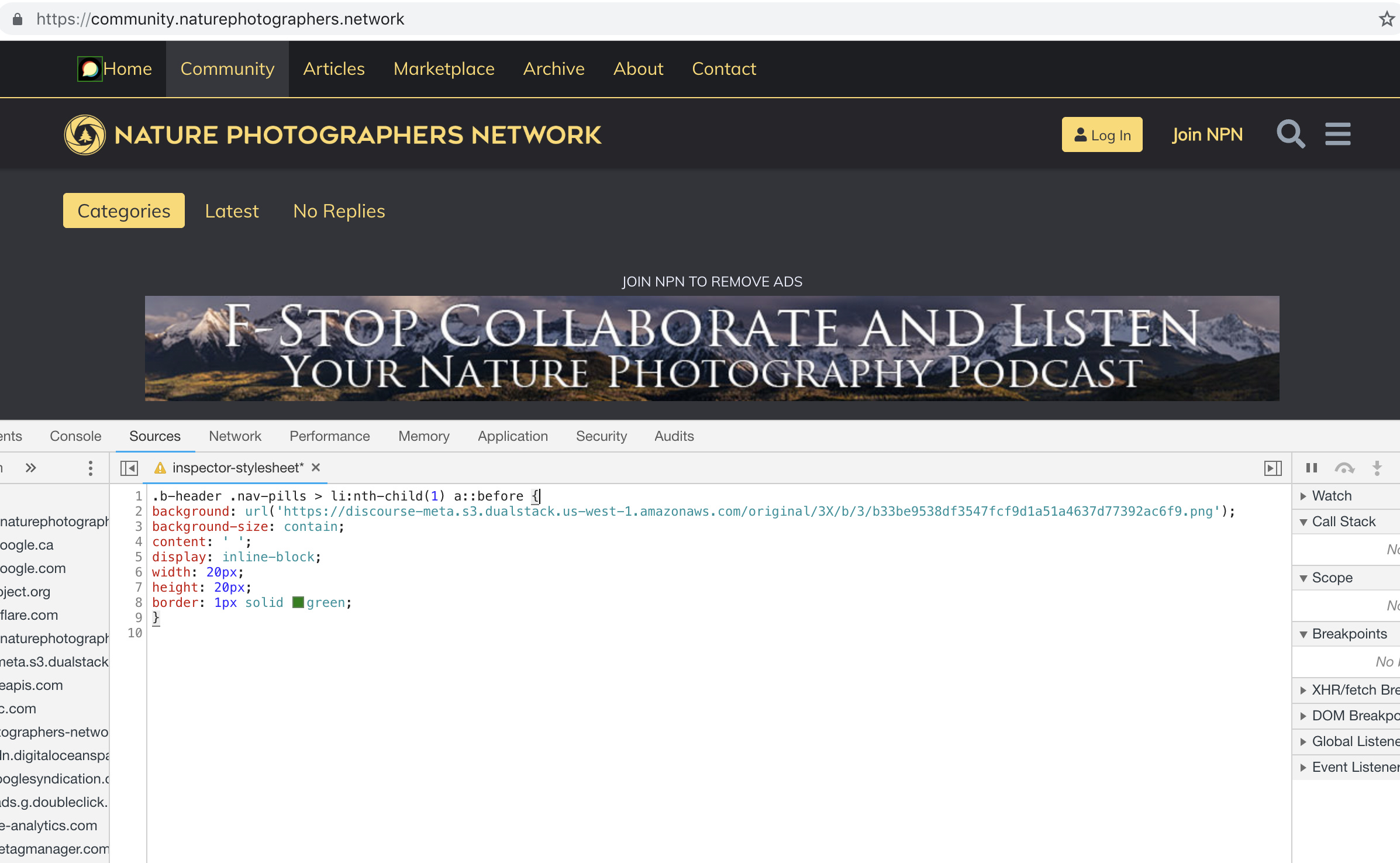
I’m trying to use this with the Brand Header Theme Component but not having any success with this:

.b-header .nav-pills > li:nth-child(1) a::before{
content: url(https://npn.sfo2.cdn.digitaloceanspaces.com/misc/home-solid.svg);
display: inline-block;
width: 20px;
height: 20px;}

I’ve also tried:

.b-header .nav-pills > li:nth-child(1) a::before {
display: block;
  content: ' ';
  background-image: url('https://npn.sfo2.cdn.digitaloceanspaces.com/misc/home-solid.svg');
  background-size: 20px 20px;
  height: 20px;
  width: 20px;
}

Anyone have ideas?

2 „Gefällt mir“

Something is wrong with your SVG image. The screenshot below works with the Discourse logo, but not with that SVG file:

2 „Gefällt mir“

It might be because the SVG doesn’t have any height/width defined (in the SVG markup itself, not the CSS)

Can you right click this one below, save it, and try again… I’ve added some dimensions to it.

home-solid

8 „Gefällt mir“

This does seem to work, dare I ask how? Also, fill: does not seem to work on this to change the color, it just displays as black.

For reference, my code:

.b-header .nav-pills > li:nth-child(1) a::before {
display: inline-block;
content: ' ';
background: url('https://d11a6trkgmumsb.cloudfront.net/original/3X/a/6/a61b08e7f318170faee755cb6dcd48d6f6d7413d.svg');
background-size: contain;
height: 20px;
width: 20px;
border: 1px solid blue;
fill: blue;

}

2 „Gefällt mir“