Presentando Font Awesome 5 e iconos SVG

Ver también: We're upgrading our icons to Font Awesome 6!

Pronto fusionaremos en master una rama que actualiza Discourse a Font Awesome 5.5.0 (la versión gratuita) y cambia al uso de iconos SVG en lugar de una fuente de iconos. Este es un cambio sustancial, con muchos beneficios y un cambio significativo para los desarrolladores.

Aquí tienes un resumen rápido de los cambios:

  • El uso de iconos SVG proporcionará iconos más nítidos, mejorará la accesibilidad y facilitará la personalización; consulta este artículo de GitHub para más detalles.
  • Dado que el conjunto de iconos de Font Awesome ha crecido a más de 1300 iconos en la versión 5, hemos creado una API interna que entrega a los clientes un subconjunto de todos los iconos de FA, es decir, solo aquellos iconos utilizados por esa instancia de Discourse.
  • Afortunadamente, el subconjunto tiene un tamaño de archivo menor: ya se está ejecutando aquí en Meta y tiene solo 27.5 kb, frente a los 75.7 kb de la fuente de iconos FA 4.7.
  • Los complementos y temas (incluidos los componentes de tema) pueden agregar iconos FA adicionales al conjunto.
  • Los iconos de insignias y de grupo se incluirán automáticamente en el conjunto, y los administradores del sitio también pueden usar una nueva configuración del sitio llamada svg icon subset para registrar sus iconos elegidos y agregarlos al subconjunto de su sitio.
  • Cambio disruptivo: los desarrolladores de complementos y temas ya no pueden usar <i class="fa fa-icon"></i> ni anular los selectores pseudo :before para referenciar o reemplazar iconos; ahora deben reemplazarse usando funciones de Discourse que inyectan SVG en la página.

A continuación, encontrarás instrucciones sobre cómo actualizar los complementos y temas para usar iconos del nuevo conjunto.

¿Qué hay de nuevo en Font Awesome 5?

Font Awesome 5 ha introducido muchos nuevos iconos, pero también algunos cambios en la nomenclatura. Para una discusión completa de los cambios, consulta la documentación de actualización de Font Awesome. El cambio principal es que los iconos en FA ahora vienen en estilos separados. Hay tres estilos:

  1. sólido (predeterminado) – fas
  2. regular – far
  3. marcas – fab

Para los estilos regular o de marcas, FA 5 introduce nuevos prefijos de clase: “far” y “fab”, respectivamente. Para usar un icono de los estilos regular o de marcas, debemos usar esta nueva convención de nomenclatura: "far fa-address-book" o "fab fa-facebook". (Los iconos sólidos pueden referenciarse simplemente como antes: “fa-nombre-del-icono”).

Para permitir agrupar los tres estilos en un solo sprite SVG, los iconos en los estilos regular y de marcas en Discourse se convierten internamente a far-nombre-del-icono y fab-nombre-del-icono. Los complementos, temas, insignias de grupo y medallas pueden usar la convención de nomenclatura estándar de FontAwesome 5. Los administradores del sitio que agreguen iconos al conjunto mediante la configuración del sitio svg icon subset deben usar la convención de nomenclatura interna.

Desarrolladores: cómo usar o agregar un icono SVG a tu complemento o tema

  1. Agregar nuevos iconos

    Complementos:

    Registra el icono en el archivo plugin.rb de tu complemento:

    register_svg_icon "user-times" if respond_to?(:register_svg_icon)
    

    (Nota: debes reiniciar tu servidor Rails en tu entorno de desarrollo para que este cambio surta efecto.)

    Temas o componentes:

    Agrega una configuración de cadena o lista con un nombre que contenga _icon, por ejemplo:

    svg_icons: 
      default: 'question-circle|wallet'
      type: 'list'
      list_type: 'compact'
    

    Y Discourse incluirá el(los) icono(s) definidos en esa configuración del tema en el subconjunto.

  2. Usar iconos en tu JavaScript

    Complementos:

    import { iconNode } from "discourse-common/lib/icon-library";
    ...
    let icon = iconNode('user-times');
    

    o usa el helper iconHTML

    import { iconHTML } from "discourse-common/lib/icon-library";
    ...
    let icon = iconHTML('user-times');
    

    Temas o componentes:

    const { iconNode } = require("discourse-common/lib/icon-library");
    ...
    let icon = iconNode('user-times');
    

    o usa el helper iconHTML

    const { iconHTML } = require("discourse-common/lib/icon-library");
    ...
    let icon = iconHTML('user-times');
    

    Los helpers también pueden aceptar un segundo parámetro con propiedades como título o clase. Esto funciona de la misma manera en complementos y temas/componentes, por ejemplo:

    iconHTML('user-times', { class: "reply-to-glyph" })
    
  3. Usar iconos en tus plantillas Handlebars

    En las plantillas Handlebars, puedes usar d-icon, así:

    {{d-icon 'user-times'}}
    

    Esto también funciona de la misma manera en complementos y temas/componentes.

Agregar iconos personalizados

Si deseas tener más iconos de los disponibles en FontAwesome, puedes agregar tus propios iconos SVG en un complemento o un tema. Consulta este sprite SVG como ejemplo de cómo estructurar tu sprite. (Es esencialmente una lista de elementos <symbol>, cada uno con su propio ID único.)

En temas y componentes: agrega el sprite SVG en la carpeta /assets y refiérete a él en about.json usando el nombre de variable icons-sprite. Para un sprite llamado my-icons.svg, tu assets.json debería incluir esto:

"assets": {
   "icons-sprite": "/assets/my-icons.svg"
}

También puedes agregar el sprite SVG a un tema o componente mediante la interfaz de usuario; al hacerlo, asegúrate de que el nombre de la variable SCSS esté establecido en icons-sprite. Captura de pantalla:

En complementos: simplemente incluye un archivo de sprite SVG en la carpeta plugins/your-plugin-name/svg-icons. Reinicia tu servidor (si estás en desarrollo) o reconstruye el sitio si estás en un contenedor Docker, y tus iconos personalizados deberían estar disponibles automáticamente.

Para evitar posibles conflictos con los IDs de iconos de FontAwesome, debes anteponer un prefijo a los IDs de los iconos personalizados en tu complemento o tema.

80 Me gusta

Could someone elaborate on how to update a theme component? I’m very green at this and haven’t been able to make sense of all this. I’m currently using as such:

<a href="javascript:history.back()" class="app-go-back"><i class="fas fa-arrow-left" aria-hidden="true"></i></a>

This may be unrelated, but the following css has broken since the latest build:

.b-header .nav-pills > li:nth-child(3) a::before{
	content: "\f1ea";
}

As you can see here, only this one icon has broken, I double checked and f1ea is still valid in FA5. Is there a better way to achieve this with the new changes?

2 Me gusta

From what I can see all of the icons are broken:

2 Me gusta

Hmm interesting, they must be cached on my side. Is the option of using this gone now @pmusaraj?

2 Me gusta

For HTML code directly, you can replace:

<i class="fas fa-arrow-left" aria-hidden="true"></i>

with:

<svg class="fa d-icon d-icon-arrow-left svg-icon svg-node" aria-hidden="true"><use xlink:href="#arrow-left"></use></svg>

Note that “arrow left” is in two places, in the class and in the <use> tag. Also, this icon is in the solid style in FA5, but for icons in regular or brands, you need to use the prefixes far- and fab-, respectively.

In your header links, you can’t use :before anymore, because SVG sprites can’t be added to pseudo selectors. But you can use this component: Header submenus (it’s been updated recently, and is FA5-compatible).

15 Me gusta

Good job. :ok_hand:

How can I change this code to work with Font Awesome 5?

 a[href="/new"]:before {
      display: inline-block;
      font-family: FontAwesome;
      font-style: normal;
      font-weight: normal;
      line-height: 1;
      -moz-osx-font-smoothing: grayscale;
      content: "\f0ca";
      margin-right: 3px
    }
2 Me gusta

What is creating this a[href="/new"] element? If you are adding it in your theme, via JS, then it’s easier to add the icon there, instead of using the CSS pseudo selector. One of iconHTML or iconNode above should do the trick.

5 Me gusta

I’m very confused. I tried this and it worked:

But when I switched “left” to “right” in both places, it didn’t work. Am I missing something? Here’s the code I tried:

<svg class="fa d-icon d-icon-arrow-right svg-icon svg-node" aria-hidden="true"><use xlink:href="#arrow-right"></use></svg>

(I was actually trying to get the church icon to work, so if that’s going to require something else, let me know.)

1 me gusta

The arrow-right icon is not included by default (because it isn’t used elsewhere in Discourse), so you will need to add it to the svg icons subset site setting. Same for the church icon. (FA5 comes with thousands of icons, so we use a subset to avoid loading all the icons all the time. It saves precious bytes :slight_smile:)

17 Me gusta

Makes complete sense. Thanks much.

2 Me gusta

I was banging my head against the wall trying to figure out why the right arrow wasn’t displaying last night! FYI I don’t if this is because it is a work in progress, but the instructions say to use far but this did not display the icon, I had to add it as fa-right-arrow for it to display.

3 Me gusta

Sorry about that, I have updated the description text for that setting to include: “Use prefix ‘fa-’ for solid icons, ‘far-’ for regular icons and ‘fab-’ for brand icons.”

8 Me gusta

I want to add icons to the navigation bar – and I used a[href="/new"] for meta.discourse.org/new or a[href="/categories"] for meta.discourse.org/categories

// Add Font Awesome 5 Icons to the navigation bar

a[href="/new"]:before {
  font-family: "Font Awesome 5 Free";
  font-weight: 900;
  content: "\f007";
  display: inline-block;
  font-style: normal;
  font-variant: normal;
  text-rendering: auto;
  line-height: 1;
  margin-right: 3px;
  -webkit-font-smoothing: antialiased;
}

But I’m doing something wrong and it’s not working.

2 Me gusta

We are no longer using Font Awesome as a font, so using the old method of pseudo selectors in CSS will not work.

If you don’t want to touch javascript and want a CSS-only solution, you can use an SVG as an image:

a[href="/new"]:before {
   content: url(/link-to-file.svg);
  // display inline-block, etc still needed
}

or you can inline the SVG’s code (which I believe has some compatibility issues with older browsers)

a[href="/new"]:before {
   content: url('data:image/svg+xml; utf8, <svg xmlns="http://www.w3.org/2000/svg" aria-hidden="true" data-prefix="fas" data-icon="grin-tongue-wink" class="svg-inline--fa fa-grin-tongue-wink fa-w-16" role="img"  height="25" width="25" viewBox="0 0 496 512"><path fill="white" d="M344 184c-13.3 0-24 10.7-24 24s10.7 24 24 24 24-10.7 24-24-10.7-24-24-24zM248 8C111 8 0 119 0 256c0 106.3 67 196.7 161 232-5.6-12.2-9-25.7-9-40v-45.5c-24.7-16.2-43.5-38.1-47.8-63.8-2-11.8 9.3-21.5 20.7-17.9C155.1 330.5 200 336 248 336s92.9-5.5 123.1-15.2c11.5-3.7 22.6 6.1 20.7 17.9-4.3 25.7-23.1 47.6-47.8 63.8V448c0 14.3-3.4 27.8-9 40 94-35.3 161-125.7 161-232C496 119 385 8 248 8zm-56 225l-9.5-8.5c-14.8-13.2-46.2-13.2-61 0L112 233c-8.5 7.4-21.6.3-19.8-10.8 4-25.2 34.2-42.1 59.9-42.1S208 197 212 222.2c1.6 11.1-11.6 18.2-20 10.8zm152 39c-35.3 0-64-28.7-64-64s28.7-64 64-64 64 28.7 64 64-28.7 64-64 64zm-50.9 102.6c-14.4-6.5-31.1 2.2-34.6 17.6l-1.8 7.8c-2.1 9.2-15.2 9.2-17.3 0l-1.8-7.8c-3.5-15.4-20.2-24.1-34.6-17.6-.9.4.3-.2-18.9 9.4v63c0 35.2 28 64.5 63.1 64.9 35.7.5 64.9-28.4 64.9-64v-64c-19.5-9.6-18.2-8.9-19-9.3z"></path></svg>');
}
8 Me gusta

I’ve hacked my way through this and I’ve got everything working again except the right arrow on my mobile navigation component for the app, I can’t get it to right align to save my life. I tried using flex with flex-end to no avail. Please forgive my horrible attempt at this…

Here is my components code:
/body

/body
<div id="mobilenav">
<a href="javascript:history.back()" class="app-go-back">Back</a>
<a href="javascript:history.forward()" class="app-go-forward">Forward</a>
		<div id="mobilenavleft">
			<svg class="fa d-icon d-icon-arrow-left svg-icon svg-node" aria-hidden="true">
			<use xlink:href="#arrow-left"></use>
		</svg>
	</div>
		<div id="mobilenavright">
			<svg class="fa d-icon d-icon-arrow-right svg-icon svg-node" aria-hidden="true">
			<use xlink:href="#arrow-right"></use>
	</svg>
</div>
CSS
@media only screen and (min-width:1024px) {
div#mobilenav {
            display: none !important;
        }
}

/* move up compose window on mobile */
@media only screen and (max-width:1024px) {
#reply-control.open.edit-title {
            margin-bottom: 29px;
            height: 85%;
            margin-top: -29px;
        }

.timeline-container.timeline-fullscreen.show {
            margin-bottom: 29px;
        }
#reply-control.open {
            margin-bottom: 29px;
        }
.docked-composer .docked-editor {
    margin-bottom: 29px;
}
#topic-progress {
    margin-bottom: 33px;
}
.sticky-footer {
    margin-bottom: 33px;
}
}

/* display on ipad in landscape orientation */
@media only screen 
and (min-device-width : 768px) 
and (max-device-width : 1024px) 
and (orientation : landscape) {
div#mobilenav {
            display: block;
        }
}

div#mobilenav {
box-shadow: 0px -1px 5px 0px rgba(0,0,0,0.15);
position: fixed;
bottom: 0px;
width: 100%;
height: auto;
border: none;
z-index: 99999999999;
background-color: #2A2B2F;
}

.app-go-forward {
text-align: right;
padding: 5px 3%;
width: 44%;
float: right;
display: inline-block;
}

.app-go-back {
text-align: left;
padding: 5px 7%;
width: 44%;
float: left;
display: inline-block;
}

div#mobilenav {
display: flex;
flex-direction: row;
flex-wrap: nowrap;
}

div#mobilenavleft {
box-shadow: 0px -1px 5px 0px rgba(0,0,0,0.15);
position: fixed;
bottom: 0px;
width: 1%;
height: auto;
border: none;
z-index: 99999999999;
padding-bottom: 4px;
padding-left: 5px;
}

div#mobilenavright {
box-shadow: 0px -1px 5px 0px rgba(0,0,0,0.15);
position: fixed;
bottom: 0px;
width: 1%;
height: auto;
border: none;
z-index: 99999999999;
padding-bottom: 4px;
padding-right: 5px;
justify-content: flex-end;
}

If anyone wants to help, my site is here and this component only displays below 1024px obviously. The left arrow looks perfect and the right arrow should mirror this.

1 me gusta

It’s because you’re using position: fixed on the arrow, if you add

div#mobilenavright {
  right: 5px;
}

Then it should be where you want it.

Sidenote: You don’t really need to use position: fixed for those arrows at all because they’re already within a fixed container, if you put the arrows inside of your a tags containing the “forward” and “back” text the layout might be a bit easier to manage in general.

10 Me gusta

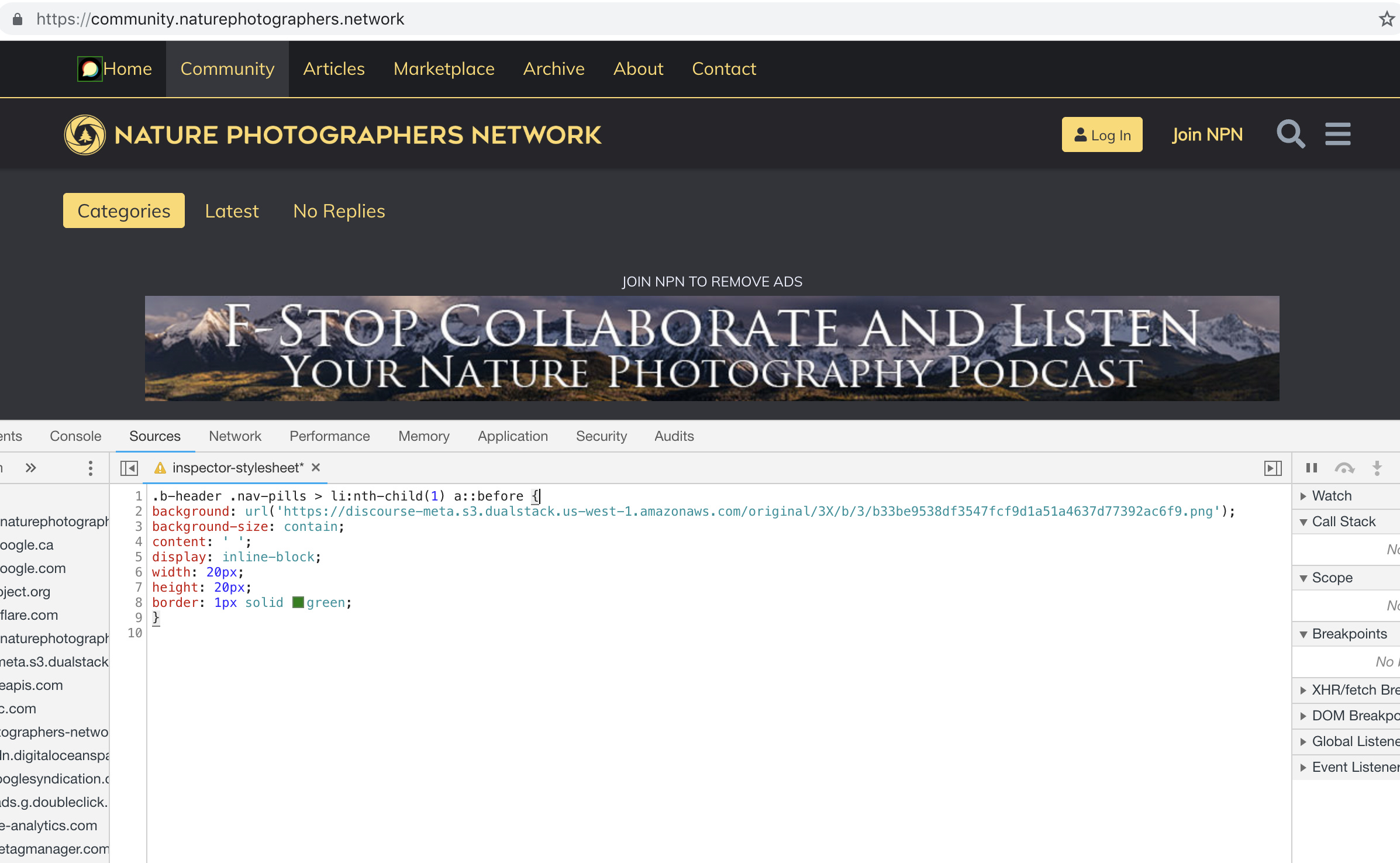
I’m trying to use this with the Brand Header Theme Component but not having any success with this:

.b-header .nav-pills > li:nth-child(1) a::before{
content: url(https://npn.sfo2.cdn.digitaloceanspaces.com/misc/home-solid.svg);
display: inline-block;
width: 20px;
height: 20px;}

I’ve also tried:

.b-header .nav-pills > li:nth-child(1) a::before {
display: block;
  content: ' ';
  background-image: url('https://npn.sfo2.cdn.digitaloceanspaces.com/misc/home-solid.svg');
  background-size: 20px 20px;
  height: 20px;
  width: 20px;
}

Anyone have ideas?

2 Me gusta

Something is wrong with your SVG image. The screenshot below works with the Discourse logo, but not with that SVG file:

2 Me gusta

It might be because the SVG doesn’t have any height/width defined (in the SVG markup itself, not the CSS)

Can you right click this one below, save it, and try again… I’ve added some dimensions to it.

home-solid

8 Me gusta

This does seem to work, dare I ask how? Also, fill: does not seem to work on this to change the color, it just displays as black.

For reference, my code:

.b-header .nav-pills > li:nth-child(1) a::before {
display: inline-block;
content: ' ';
background: url('https://d11a6trkgmumsb.cloudfront.net/original/3X/a/6/a61b08e7f318170faee755cb6dcd48d6f6d7413d.svg');
background-size: contain;
height: 20px;
width: 20px;
border: 1px solid blue;
fill: blue;

}

2 Me gusta