Introduzione a Font Awesome 5 e icone SVG

Vedi anche: We're upgrading our icons to Font Awesome 6!

A breve fusioneremo in master un branch che aggiorna Discourse a Font Awesome 5.5.0 (versione gratuita) e passa all’uso di icone SVG invece di un font di icone. Si tratta di un cambiamento sostanziale, con molti vantaggi e un cambiamento significativo per gli sviluppatori.

Ecco un rapido riassunto delle modifiche:

  • l’uso di icone SVG fornirà icone più nitide, migliori per l’accessibilità e più facili da personalizzare; consulta questo articolo di GitHub per maggiori dettagli
  • poiché il set di icone Font Awesome è cresciuto fino a oltre 1300 icone nella versione 5, abbiamo creato un’API interna che fornisce ai client un sottoinsieme di tutte le icone FA, ovvero solo quelle utilizzate da quella specifica istanza di Discourse
  • il sottoinsieme ha fortunatamente un footprint di dimensioni più ridotte: è già in esecuzione qui su Meta ed è di soli 27,5 kB contro i 75,7 kB del font di icone FA 4.7
  • plugin e temi (inclusi i componenti del tema) possono aggiungere ulteriori icone FA al set
  • le icone di flair dei gruppi e dei distintivi verranno incluse automaticamente nel set, e gli amministratori del sito possono anche utilizzare una nuova impostazione del sito chiamata svg icon subset per registrare le icone scelte e aggiungerle al sottoinsieme del loro sito
  • cambiamento distruttivo: gli sviluppatori di plugin e temi non possono più utilizzare <i class="fa fa-icon"></i> o sovrascrivere i selettori pseudo :before per fare riferimento/sostituire le icone; questi dovrebbero ora essere sostituiti utilizzando le funzioni di Discourse che iniettano SVG nella pagina

Di seguito sono riportate le istruzioni su come aggiornare plugin e temi per utilizzare le icone dal nuovo set.

Novità in Font Awesome 5

Font Awesome 5 ha introdotto molte nuove icone ma anche alcune modifiche ai nomi. Per una discussione completa sulle modifiche, consulta la documentazione di aggiornamento di Font Awesome. La modifica principale è che le icone in FA ora sono disponibili in stili separati. Ci sono tre stili:

  1. solid (predefinito) – fas
  2. regular – far
  3. brands – fab

Per gli stili regular o brands, FA 5 introduce nuovi prefissi di classe, rispettivamente “far” e “fab”. Per utilizzare un’icona dagli stili regular o brands, è quindi necessario utilizzare questa nuova convenzione di denominazione: "far fa-address-book" o "fab fa-facebook". (Le icone solid possono essere semplicemente referenziate come prima: “fa-nome-icona”).

Per consentire l’impacchettamento dei tre stili in un’unica sprite SVG, le icone negli stili regular e brand in Discourse vengono convertite internamente in far-nome-icona e fab-nome-icona. Plugin, temi, flair dei gruppi e distintivi possono utilizzare la convenzione di denominazione standard di FontAwesome 5. Gli amministratori del sito che aggiungono icone al set tramite l’impostazione del sito svg icon subset devono utilizzare la convenzione di denominazione interna.

Sviluppatori: come usare o aggiungere un’icona SVG al tuo plugin o tema

  1. Aggiunta di nuove icone

    plugin:

    registra l’icona nel file plugin.rb del tuo plugin:

    register_svg_icon "user-times" if respond_to?(:register_svg_icon)
    

    (Nota: è necessario riavviare il server Rails nell’ambiente di sviluppo affinché questa modifica abbia effetto.)

    temi o componenti:

    aggiungi un’impostazione di tipo stringa o elenco con un nome contenente _icon, ad esempio:

    svg_icons: 
      default: 'question-circle|wallet'
      type: 'list'
      list_type: 'compact'
    

    e Discourse includerà l’icona/e definita/e in quell’impostazione del tema nel sottoinsieme.

  2. Utilizzo delle icone nel tuo JavaScript

    plugin:

    import { iconNode } from "discourse-common/lib/icon-library";
    ...
    let icon = iconNode('user-times');
    

    oppure utilizza l’helper iconHTML

    import { iconHTML } from "discourse-common/lib/icon-library";
    ...
    let icon = iconHTML('user-times');
    

    temi o componenti:

    const { iconNode } = require("discourse-common/lib/icon-library");
    ...
    let icon = iconNode('user-times');
    

    oppure utilizza l’helper iconHTML

    const { iconHTML } = require("discourse-common/lib/icon-library");
    ...
    let icon = iconHTML('user-times');
    

    Gli helper possono anche accettare un secondo parametro con proprietà come titolo o classe. Questo funziona allo stesso modo nei plugin e nei temi/componenti, ad esempio:

    iconHTML('user-times', { class: "reply-to-glyph" })
    
  3. Utilizzo delle icone nei tuoi template Handlebars
    Nei template Handlebars, puoi utilizzare d-icon, come segue:

    {{d-icon 'user-times'}}
    

    Questo funziona allo stesso modo anche per plugin e temi/componenti.

Aggiunta di icone personalizzate

Se desideri avere più icone di quelle disponibili in FontAwesome, puoi aggiungere le tue icone SVG in un plugin o in un tema. Consulta questa sprite SVG per un esempio di come strutturare la tua sprite. (È essenzialmente un elenco di elementi <symbol>, ciascuno con un proprio ID univoco.)

Nei temi e nei componenti: aggiungi la sprite SVG nella cartella /assets e fai riferimento ad essa in about.json utilizzando il nome della variabile icons-sprite. Per una sprite chiamata my-icons.svg, il tuo assets.json dovrebbe includere quanto segue:

"assets": {
   "icons-sprite": "/assets/my-icons.svg"
}

Puoi anche aggiungere la sprite SVG a un tema o a un componente tramite l’interfaccia utente; quando lo fai, assicurati che il nome della variabile SCSS sia impostato su icons-sprite. Screenshot:

Nei plugin: includi semplicemente un file di sprite SVG nella cartella plugins/nome-del-tuo-plugin/svg-icons. Riavvia il server (se in sviluppo) o ricostruisci il sito se in un contenitore Docker e le tue icone personalizzate dovrebbero essere automaticamente disponibili.

Per evitare eventuali conflitti con gli ID delle icone di FontAwesome, dovresti prefixare gli ID delle icone personalizzate nel tuo plugin o tema.

80 Mi Piace

Could someone elaborate on how to update a theme component? I’m very green at this and haven’t been able to make sense of all this. I’m currently using as such:

<a href="javascript:history.back()" class="app-go-back"><i class="fas fa-arrow-left" aria-hidden="true"></i></a>

This may be unrelated, but the following css has broken since the latest build:

.b-header .nav-pills > li:nth-child(3) a::before{
	content: "\f1ea";
}

As you can see here, only this one icon has broken, I double checked and f1ea is still valid in FA5. Is there a better way to achieve this with the new changes?

2 Mi Piace

From what I can see all of the icons are broken:

2 Mi Piace

Hmm interesting, they must be cached on my side. Is the option of using this gone now @pmusaraj?

2 Mi Piace

For HTML code directly, you can replace:

<i class="fas fa-arrow-left" aria-hidden="true"></i>

with:

<svg class="fa d-icon d-icon-arrow-left svg-icon svg-node" aria-hidden="true"><use xlink:href="#arrow-left"></use></svg>

Note that “arrow left” is in two places, in the class and in the <use> tag. Also, this icon is in the solid style in FA5, but for icons in regular or brands, you need to use the prefixes far- and fab-, respectively.

In your header links, you can’t use :before anymore, because SVG sprites can’t be added to pseudo selectors. But you can use this component: Header submenus (it’s been updated recently, and is FA5-compatible).

15 Mi Piace

Good job. :ok_hand:

How can I change this code to work with Font Awesome 5?

 a[href="/new"]:before {
      display: inline-block;
      font-family: FontAwesome;
      font-style: normal;
      font-weight: normal;
      line-height: 1;
      -moz-osx-font-smoothing: grayscale;
      content: "\f0ca";
      margin-right: 3px
    }
2 Mi Piace

What is creating this a[href="/new"] element? If you are adding it in your theme, via JS, then it’s easier to add the icon there, instead of using the CSS pseudo selector. One of iconHTML or iconNode above should do the trick.

5 Mi Piace

I’m very confused. I tried this and it worked:

But when I switched “left” to “right” in both places, it didn’t work. Am I missing something? Here’s the code I tried:

<svg class="fa d-icon d-icon-arrow-right svg-icon svg-node" aria-hidden="true"><use xlink:href="#arrow-right"></use></svg>

(I was actually trying to get the church icon to work, so if that’s going to require something else, let me know.)

1 Mi Piace

The arrow-right icon is not included by default (because it isn’t used elsewhere in Discourse), so you will need to add it to the svg icons subset site setting. Same for the church icon. (FA5 comes with thousands of icons, so we use a subset to avoid loading all the icons all the time. It saves precious bytes :slight_smile:)

17 Mi Piace

Makes complete sense. Thanks much.

2 Mi Piace

I was banging my head against the wall trying to figure out why the right arrow wasn’t displaying last night! FYI I don’t if this is because it is a work in progress, but the instructions say to use far but this did not display the icon, I had to add it as fa-right-arrow for it to display.

3 Mi Piace

Sorry about that, I have updated the description text for that setting to include: “Use prefix ‘fa-’ for solid icons, ‘far-’ for regular icons and ‘fab-’ for brand icons.”

8 Mi Piace

I want to add icons to the navigation bar – and I used a[href="/new"] for meta.discourse.org/new or a[href="/categories"] for meta.discourse.org/categories

// Add Font Awesome 5 Icons to the navigation bar

a[href="/new"]:before {
  font-family: "Font Awesome 5 Free";
  font-weight: 900;
  content: "\f007";
  display: inline-block;
  font-style: normal;
  font-variant: normal;
  text-rendering: auto;
  line-height: 1;
  margin-right: 3px;
  -webkit-font-smoothing: antialiased;
}

But I’m doing something wrong and it’s not working.

2 Mi Piace

We are no longer using Font Awesome as a font, so using the old method of pseudo selectors in CSS will not work.

If you don’t want to touch javascript and want a CSS-only solution, you can use an SVG as an image:

a[href="/new"]:before {
   content: url(/link-to-file.svg);
  // display inline-block, etc still needed
}

or you can inline the SVG’s code (which I believe has some compatibility issues with older browsers)

a[href="/new"]:before {
   content: url('data:image/svg+xml; utf8, <svg xmlns="http://www.w3.org/2000/svg" aria-hidden="true" data-prefix="fas" data-icon="grin-tongue-wink" class="svg-inline--fa fa-grin-tongue-wink fa-w-16" role="img"  height="25" width="25" viewBox="0 0 496 512"><path fill="white" d="M344 184c-13.3 0-24 10.7-24 24s10.7 24 24 24 24-10.7 24-24-10.7-24-24-24zM248 8C111 8 0 119 0 256c0 106.3 67 196.7 161 232-5.6-12.2-9-25.7-9-40v-45.5c-24.7-16.2-43.5-38.1-47.8-63.8-2-11.8 9.3-21.5 20.7-17.9C155.1 330.5 200 336 248 336s92.9-5.5 123.1-15.2c11.5-3.7 22.6 6.1 20.7 17.9-4.3 25.7-23.1 47.6-47.8 63.8V448c0 14.3-3.4 27.8-9 40 94-35.3 161-125.7 161-232C496 119 385 8 248 8zm-56 225l-9.5-8.5c-14.8-13.2-46.2-13.2-61 0L112 233c-8.5 7.4-21.6.3-19.8-10.8 4-25.2 34.2-42.1 59.9-42.1S208 197 212 222.2c1.6 11.1-11.6 18.2-20 10.8zm152 39c-35.3 0-64-28.7-64-64s28.7-64 64-64 64 28.7 64 64-28.7 64-64 64zm-50.9 102.6c-14.4-6.5-31.1 2.2-34.6 17.6l-1.8 7.8c-2.1 9.2-15.2 9.2-17.3 0l-1.8-7.8c-3.5-15.4-20.2-24.1-34.6-17.6-.9.4.3-.2-18.9 9.4v63c0 35.2 28 64.5 63.1 64.9 35.7.5 64.9-28.4 64.9-64v-64c-19.5-9.6-18.2-8.9-19-9.3z"></path></svg>');
}
8 Mi Piace

I’ve hacked my way through this and I’ve got everything working again except the right arrow on my mobile navigation component for the app, I can’t get it to right align to save my life. I tried using flex with flex-end to no avail. Please forgive my horrible attempt at this…

Here is my components code:
/body

/body
<div id="mobilenav">
<a href="javascript:history.back()" class="app-go-back">Back</a>
<a href="javascript:history.forward()" class="app-go-forward">Forward</a>
		<div id="mobilenavleft">
			<svg class="fa d-icon d-icon-arrow-left svg-icon svg-node" aria-hidden="true">
			<use xlink:href="#arrow-left"></use>
		</svg>
	</div>
		<div id="mobilenavright">
			<svg class="fa d-icon d-icon-arrow-right svg-icon svg-node" aria-hidden="true">
			<use xlink:href="#arrow-right"></use>
	</svg>
</div>
CSS
@media only screen and (min-width:1024px) {
div#mobilenav {
            display: none !important;
        }
}

/* move up compose window on mobile */
@media only screen and (max-width:1024px) {
#reply-control.open.edit-title {
            margin-bottom: 29px;
            height: 85%;
            margin-top: -29px;
        }

.timeline-container.timeline-fullscreen.show {
            margin-bottom: 29px;
        }
#reply-control.open {
            margin-bottom: 29px;
        }
.docked-composer .docked-editor {
    margin-bottom: 29px;
}
#topic-progress {
    margin-bottom: 33px;
}
.sticky-footer {
    margin-bottom: 33px;
}
}

/* display on ipad in landscape orientation */
@media only screen 
and (min-device-width : 768px) 
and (max-device-width : 1024px) 
and (orientation : landscape) {
div#mobilenav {
            display: block;
        }
}

div#mobilenav {
box-shadow: 0px -1px 5px 0px rgba(0,0,0,0.15);
position: fixed;
bottom: 0px;
width: 100%;
height: auto;
border: none;
z-index: 99999999999;
background-color: #2A2B2F;
}

.app-go-forward {
text-align: right;
padding: 5px 3%;
width: 44%;
float: right;
display: inline-block;
}

.app-go-back {
text-align: left;
padding: 5px 7%;
width: 44%;
float: left;
display: inline-block;
}

div#mobilenav {
display: flex;
flex-direction: row;
flex-wrap: nowrap;
}

div#mobilenavleft {
box-shadow: 0px -1px 5px 0px rgba(0,0,0,0.15);
position: fixed;
bottom: 0px;
width: 1%;
height: auto;
border: none;
z-index: 99999999999;
padding-bottom: 4px;
padding-left: 5px;
}

div#mobilenavright {
box-shadow: 0px -1px 5px 0px rgba(0,0,0,0.15);
position: fixed;
bottom: 0px;
width: 1%;
height: auto;
border: none;
z-index: 99999999999;
padding-bottom: 4px;
padding-right: 5px;
justify-content: flex-end;
}

If anyone wants to help, my site is here and this component only displays below 1024px obviously. The left arrow looks perfect and the right arrow should mirror this.

1 Mi Piace

It’s because you’re using position: fixed on the arrow, if you add

div#mobilenavright {
  right: 5px;
}

Then it should be where you want it.

Sidenote: You don’t really need to use position: fixed for those arrows at all because they’re already within a fixed container, if you put the arrows inside of your a tags containing the “forward” and “back” text the layout might be a bit easier to manage in general.

10 Mi Piace

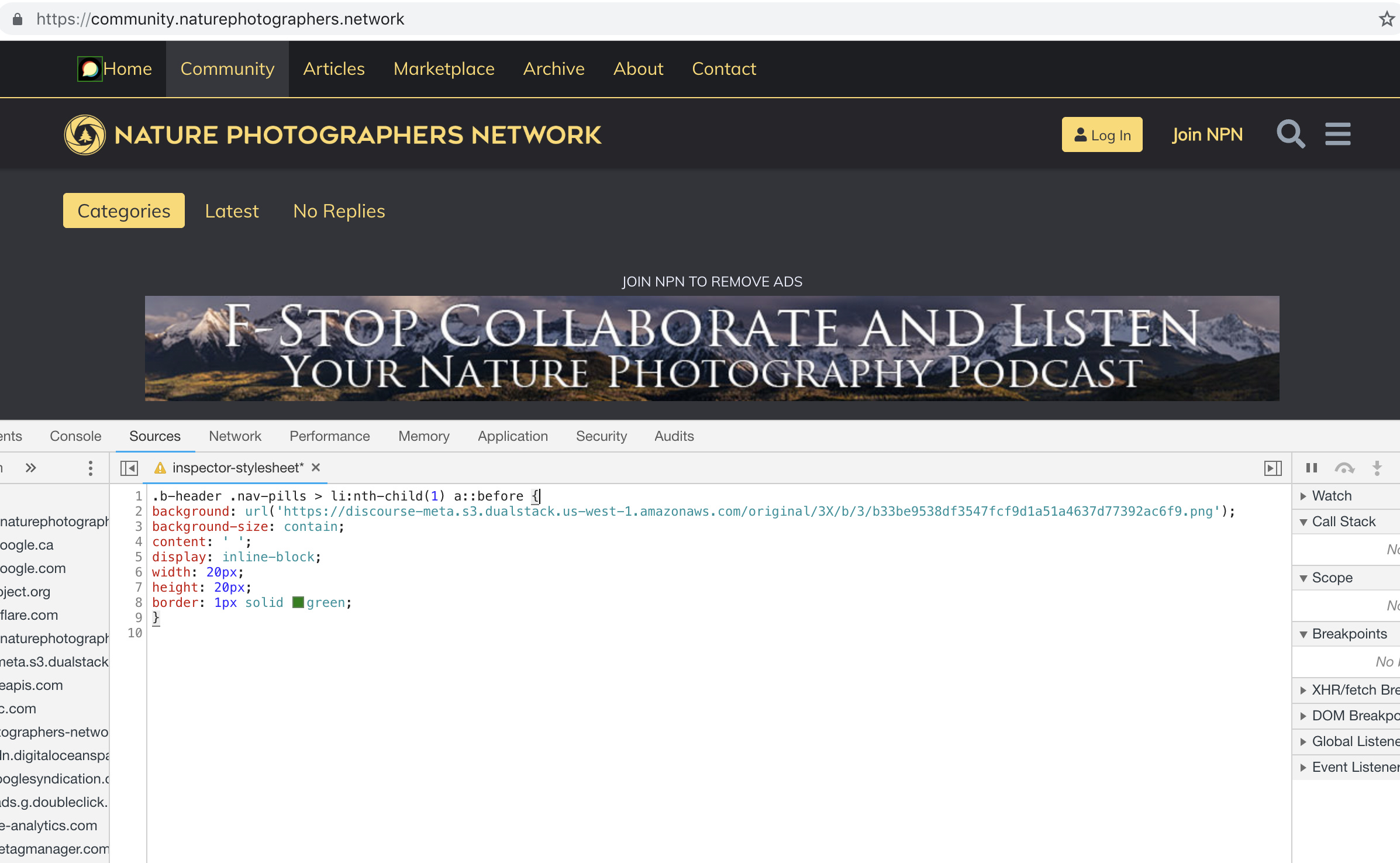
I’m trying to use this with the Brand Header Theme Component but not having any success with this:

.b-header .nav-pills > li:nth-child(1) a::before{
content: url(https://npn.sfo2.cdn.digitaloceanspaces.com/misc/home-solid.svg);
display: inline-block;
width: 20px;
height: 20px;}

I’ve also tried:

.b-header .nav-pills > li:nth-child(1) a::before {
display: block;
  content: ' ';
  background-image: url('https://npn.sfo2.cdn.digitaloceanspaces.com/misc/home-solid.svg');
  background-size: 20px 20px;
  height: 20px;
  width: 20px;
}

Anyone have ideas?

2 Mi Piace

Something is wrong with your SVG image. The screenshot below works with the Discourse logo, but not with that SVG file:

2 Mi Piace

It might be because the SVG doesn’t have any height/width defined (in the SVG markup itself, not the CSS)

Can you right click this one below, save it, and try again… I’ve added some dimensions to it.

home-solid

8 Mi Piace

This does seem to work, dare I ask how? Also, fill: does not seem to work on this to change the color, it just displays as black.

For reference, my code:

.b-header .nav-pills > li:nth-child(1) a::before {
display: inline-block;
content: ' ';
background: url('https://d11a6trkgmumsb.cloudfront.net/original/3X/a/6/a61b08e7f318170faee755cb6dcd48d6f6d7413d.svg');
background-size: contain;
height: 20px;
width: 20px;
border: 1px solid blue;
fill: blue;

}

2 Mi Piace