Apresentando Font Awesome 5 e ícones SVG

Veja também: We're upgrading our icons to Font Awesome 6!

Em breve, mesclaremos na master uma branch que atualiza o Discourse para o Font Awesome 5.5.0 (versão gratuita) e alterna para o uso de ícones SVG em vez de uma fonte de ícones. Esta é uma mudança substancial, com muitos benefícios e uma alteração significativa para desenvolvedores.

Aqui está um resumo rápido das mudanças:

  • o uso de ícones SVG proporcionará ícones mais nítidos, melhores para acessibilidade e mais fáceis de personalizar; consulte este artigo do GitHub para mais detalhes
  • como o conjunto de ícones do Font Awesome cresceu para mais de 1300 ícones na versão 5, criamos uma API interna que entrega aos clientes um subconjunto de todos os ícones do FA, ou seja, apenas os ícones usados naquela instância do Discourse
  • o subconjunto, felizmente, tem um tamanho menor: já está em execução aqui no Meta, e tem apenas 27,5 kB, contra 75,7 kB da fonte de ícones FA 4.7
  • plugins e temas (incluindo componentes de tema) podem adicionar ícones FA adicionais ao conjunto
  • ícones de grupo e de medalha serão incluídos automaticamente no conjunto, e administradores do site também podem usar uma nova configuração do site chamada svg icon subset para registrar seus ícones escolhidos e adicioná-los ao subconjunto do site
  • mudança de quebra: desenvolvedores de plugins e temas não podem mais usar <i class="fa fa-icon"></i> ou sobrescrever os seletores pseudo :before para referenciar/substituir ícones; agora, isso deve ser substituído pelo uso de funções do Discourse que injetam SVGs na página

Abaixo, você encontrará instruções sobre como atualizar plugins e temas para usar ícones do novo conjunto.

O que há de novo no Font Awesome 5

O Font Awesome 5 introduziu muitos novos ícones, mas também algumas alterações de nomenclatura. Para uma discussão completa das mudanças, consulte a documentação de atualização do Font Awesome. A principal mudança é que os ícones no FA agora vêm em estilos separados. Existem três estilos:

  1. sólido (padrão) – fas
  2. regular – far
  3. marcas – fab

Para os estilos regular ou marcas, o FA 5 introduz novos prefixos de classe, “far” e “fab”, respectivamente. Para usar um ícone dos estilos regular ou marcas, então, precisamos usar essa nova convenção de nomenclatura: "far fa-address-book" ou "fab fa-facebook". (Ícones sólidos podem ser referenciados como antes: “fa-nome-do-ícone”).

Para permitir a agrupação dos três estilos em um sprite SVG único, os ícones nos estilos regular e de marca no Discourse são convertidos internamente para far-nome-do-ícone e fab-nome-do-ícone. Plugins, temas, grupos e medalhas podem usar a convenção de nomenclatura padrão do FontAwesome 5. Administradores de site que adicionam ícones ao conjunto por meio da configuração do site svg icon subset devem usar a convenção de nomenclatura interna.

Desenvolvedores: como usar ou adicionar um ícone SVG ao seu plugin ou tema

  1. Adicionando novos ícones

    plugins:

    registre o ícone no arquivo plugin.rb do seu plugin:

    register_svg_icon "user-times" if respond_to?(:register_svg_icon)
    

    (Nota: você precisa reiniciar seu servidor Rails no seu ambiente de desenvolvimento para que essa alteração tenha efeito.)

    temas ou componentes:

    adicione uma configuração de string ou lista com um nome contendo _icon, por exemplo:

    svg_icons: 
      default: 'question-circle|wallet'
      type: 'list'
      list_type: 'compact'
    

    e o Discourse incluirá o(s) ícone(s) definido(s) nessa configuração do tema no subconjunto.

  2. Usando ícones no seu JavaScript

    plugins:

    import { iconNode } from "discourse-common/lib/icon-library";
    ...
    let icon = iconNode('user-times');
    

    ou use o helper iconHTML

    import { iconHTML } from "discourse-common/lib/icon-library";
    ...
    let icon = iconHTML('user-times');
    

    temas ou componentes:

    const { iconNode } = require("discourse-common/lib/icon-library");
    ...
    let icon = iconNode('user-times');
    

    ou use o helper iconHTML

    const { iconHTML } = require("discourse-common/lib/icon-library");
    ...
    let icon = iconHTML('user-times');
    

    os helpers também podem receber um segundo parâmetro com propriedades como título ou classe. Isso funciona da mesma maneira em plugins e temas/componentes, por exemplo:

    iconHTML('user-times', { class: "reply-to-glyph" })
    
  3. Usando ícones nos seus templates Handlebars

    Em templates Handlebars, você pode usar d-icon, assim:

    {{d-icon 'user-times'}}
    

    isso também funciona da mesma maneira para plugins e temas/componentes.

Adicionando ícones personalizados

Se você quiser ter mais ícones do que os disponíveis no FontAwesome, pode adicionar seus próprios ícones SVG em um plugin ou tema. Veja este sprite SVG para um exemplo de como estruturar seu sprite. (É essencialmente uma lista de elementos <symbol>, cada um com seu próprio ID exclusivo.)

Em temas e componentes: adicione o sprite SVG na pasta /assets e referencie-o no about.json usando o nome da variável icons-sprite. Para um sprite chamado my-icons.svg, seu assets.json deve incluir o seguinte:

"assets": {
   "icons-sprite": "/assets/my-icons.svg"
}

Você também pode adicionar o sprite SVG a um tema ou componente via interface de usuário. Ao fazer isso, certifique-se de que o nome da variável SCSS esteja definido como icons-sprite. Captura de tela:

Em plugins: basta incluir um arquivo de sprite SVG na pasta plugins/nome-do-seu-plugin/svg-icons. Reinicie seu servidor (se estiver em desenvolvimento) ou reconstrua o site se estiver em um contêiner Docker, e seus ícones personalizados estarão automaticamente disponíveis.

Para evitar possíveis conflitos com IDs de ícones do FontAwesome, você deve prefixar os IDs dos ícones personalizados em seu plugin ou tema.

80 curtidas

Could someone elaborate on how to update a theme component? I’m very green at this and haven’t been able to make sense of all this. I’m currently using as such:

<a href="javascript:history.back()" class="app-go-back"><i class="fas fa-arrow-left" aria-hidden="true"></i></a>

This may be unrelated, but the following css has broken since the latest build:

.b-header .nav-pills > li:nth-child(3) a::before{
	content: "\f1ea";
}

As you can see here, only this one icon has broken, I double checked and f1ea is still valid in FA5. Is there a better way to achieve this with the new changes?

2 curtidas

From what I can see all of the icons are broken:

2 curtidas

Hmm interesting, they must be cached on my side. Is the option of using this gone now @pmusaraj?

2 curtidas

For HTML code directly, you can replace:

<i class="fas fa-arrow-left" aria-hidden="true"></i>

with:

<svg class="fa d-icon d-icon-arrow-left svg-icon svg-node" aria-hidden="true"><use xlink:href="#arrow-left"></use></svg>

Note that “arrow left” is in two places, in the class and in the <use> tag. Also, this icon is in the solid style in FA5, but for icons in regular or brands, you need to use the prefixes far- and fab-, respectively.

In your header links, you can’t use :before anymore, because SVG sprites can’t be added to pseudo selectors. But you can use this component: Header submenus (it’s been updated recently, and is FA5-compatible).

15 curtidas

Good job. :ok_hand:

How can I change this code to work with Font Awesome 5?

 a[href="/new"]:before {
      display: inline-block;
      font-family: FontAwesome;
      font-style: normal;
      font-weight: normal;
      line-height: 1;
      -moz-osx-font-smoothing: grayscale;
      content: "\f0ca";
      margin-right: 3px
    }
2 curtidas

What is creating this a[href="/new"] element? If you are adding it in your theme, via JS, then it’s easier to add the icon there, instead of using the CSS pseudo selector. One of iconHTML or iconNode above should do the trick.

5 curtidas

I’m very confused. I tried this and it worked:

But when I switched “left” to “right” in both places, it didn’t work. Am I missing something? Here’s the code I tried:

<svg class="fa d-icon d-icon-arrow-right svg-icon svg-node" aria-hidden="true"><use xlink:href="#arrow-right"></use></svg>

(I was actually trying to get the church icon to work, so if that’s going to require something else, let me know.)

1 curtida

The arrow-right icon is not included by default (because it isn’t used elsewhere in Discourse), so you will need to add it to the svg icons subset site setting. Same for the church icon. (FA5 comes with thousands of icons, so we use a subset to avoid loading all the icons all the time. It saves precious bytes :slight_smile:)

17 curtidas

Makes complete sense. Thanks much.

2 curtidas

I was banging my head against the wall trying to figure out why the right arrow wasn’t displaying last night! FYI I don’t if this is because it is a work in progress, but the instructions say to use far but this did not display the icon, I had to add it as fa-right-arrow for it to display.

3 curtidas

Sorry about that, I have updated the description text for that setting to include: “Use prefix ‘fa-’ for solid icons, ‘far-’ for regular icons and ‘fab-’ for brand icons.”

8 curtidas

I want to add icons to the navigation bar – and I used a[href="/new"] for meta.discourse.org/new or a[href="/categories"] for meta.discourse.org/categories

// Add Font Awesome 5 Icons to the navigation bar

a[href="/new"]:before {
  font-family: "Font Awesome 5 Free";
  font-weight: 900;
  content: "\f007";
  display: inline-block;
  font-style: normal;
  font-variant: normal;
  text-rendering: auto;
  line-height: 1;
  margin-right: 3px;
  -webkit-font-smoothing: antialiased;
}

But I’m doing something wrong and it’s not working.

2 curtidas

We are no longer using Font Awesome as a font, so using the old method of pseudo selectors in CSS will not work.

If you don’t want to touch javascript and want a CSS-only solution, you can use an SVG as an image:

a[href="/new"]:before {
   content: url(/link-to-file.svg);
  // display inline-block, etc still needed
}

or you can inline the SVG’s code (which I believe has some compatibility issues with older browsers)

a[href="/new"]:before {
   content: url('data:image/svg+xml; utf8, <svg xmlns="http://www.w3.org/2000/svg" aria-hidden="true" data-prefix="fas" data-icon="grin-tongue-wink" class="svg-inline--fa fa-grin-tongue-wink fa-w-16" role="img"  height="25" width="25" viewBox="0 0 496 512"><path fill="white" d="M344 184c-13.3 0-24 10.7-24 24s10.7 24 24 24 24-10.7 24-24-10.7-24-24-24zM248 8C111 8 0 119 0 256c0 106.3 67 196.7 161 232-5.6-12.2-9-25.7-9-40v-45.5c-24.7-16.2-43.5-38.1-47.8-63.8-2-11.8 9.3-21.5 20.7-17.9C155.1 330.5 200 336 248 336s92.9-5.5 123.1-15.2c11.5-3.7 22.6 6.1 20.7 17.9-4.3 25.7-23.1 47.6-47.8 63.8V448c0 14.3-3.4 27.8-9 40 94-35.3 161-125.7 161-232C496 119 385 8 248 8zm-56 225l-9.5-8.5c-14.8-13.2-46.2-13.2-61 0L112 233c-8.5 7.4-21.6.3-19.8-10.8 4-25.2 34.2-42.1 59.9-42.1S208 197 212 222.2c1.6 11.1-11.6 18.2-20 10.8zm152 39c-35.3 0-64-28.7-64-64s28.7-64 64-64 64 28.7 64 64-28.7 64-64 64zm-50.9 102.6c-14.4-6.5-31.1 2.2-34.6 17.6l-1.8 7.8c-2.1 9.2-15.2 9.2-17.3 0l-1.8-7.8c-3.5-15.4-20.2-24.1-34.6-17.6-.9.4.3-.2-18.9 9.4v63c0 35.2 28 64.5 63.1 64.9 35.7.5 64.9-28.4 64.9-64v-64c-19.5-9.6-18.2-8.9-19-9.3z"></path></svg>');
}
8 curtidas

I’ve hacked my way through this and I’ve got everything working again except the right arrow on my mobile navigation component for the app, I can’t get it to right align to save my life. I tried using flex with flex-end to no avail. Please forgive my horrible attempt at this…

Here is my components code:
/body

/body
<div id="mobilenav">
<a href="javascript:history.back()" class="app-go-back">Back</a>
<a href="javascript:history.forward()" class="app-go-forward">Forward</a>
		<div id="mobilenavleft">
			<svg class="fa d-icon d-icon-arrow-left svg-icon svg-node" aria-hidden="true">
			<use xlink:href="#arrow-left"></use>
		</svg>
	</div>
		<div id="mobilenavright">
			<svg class="fa d-icon d-icon-arrow-right svg-icon svg-node" aria-hidden="true">
			<use xlink:href="#arrow-right"></use>
	</svg>
</div>
CSS
@media only screen and (min-width:1024px) {
div#mobilenav {
            display: none !important;
        }
}

/* move up compose window on mobile */
@media only screen and (max-width:1024px) {
#reply-control.open.edit-title {
            margin-bottom: 29px;
            height: 85%;
            margin-top: -29px;
        }

.timeline-container.timeline-fullscreen.show {
            margin-bottom: 29px;
        }
#reply-control.open {
            margin-bottom: 29px;
        }
.docked-composer .docked-editor {
    margin-bottom: 29px;
}
#topic-progress {
    margin-bottom: 33px;
}
.sticky-footer {
    margin-bottom: 33px;
}
}

/* display on ipad in landscape orientation */
@media only screen 
and (min-device-width : 768px) 
and (max-device-width : 1024px) 
and (orientation : landscape) {
div#mobilenav {
            display: block;
        }
}

div#mobilenav {
box-shadow: 0px -1px 5px 0px rgba(0,0,0,0.15);
position: fixed;
bottom: 0px;
width: 100%;
height: auto;
border: none;
z-index: 99999999999;
background-color: #2A2B2F;
}

.app-go-forward {
text-align: right;
padding: 5px 3%;
width: 44%;
float: right;
display: inline-block;
}

.app-go-back {
text-align: left;
padding: 5px 7%;
width: 44%;
float: left;
display: inline-block;
}

div#mobilenav {
display: flex;
flex-direction: row;
flex-wrap: nowrap;
}

div#mobilenavleft {
box-shadow: 0px -1px 5px 0px rgba(0,0,0,0.15);
position: fixed;
bottom: 0px;
width: 1%;
height: auto;
border: none;
z-index: 99999999999;
padding-bottom: 4px;
padding-left: 5px;
}

div#mobilenavright {
box-shadow: 0px -1px 5px 0px rgba(0,0,0,0.15);
position: fixed;
bottom: 0px;
width: 1%;
height: auto;
border: none;
z-index: 99999999999;
padding-bottom: 4px;
padding-right: 5px;
justify-content: flex-end;
}

If anyone wants to help, my site is here and this component only displays below 1024px obviously. The left arrow looks perfect and the right arrow should mirror this.

1 curtida

It’s because you’re using position: fixed on the arrow, if you add

div#mobilenavright {
  right: 5px;
}

Then it should be where you want it.

Sidenote: You don’t really need to use position: fixed for those arrows at all because they’re already within a fixed container, if you put the arrows inside of your a tags containing the “forward” and “back” text the layout might be a bit easier to manage in general.

10 curtidas

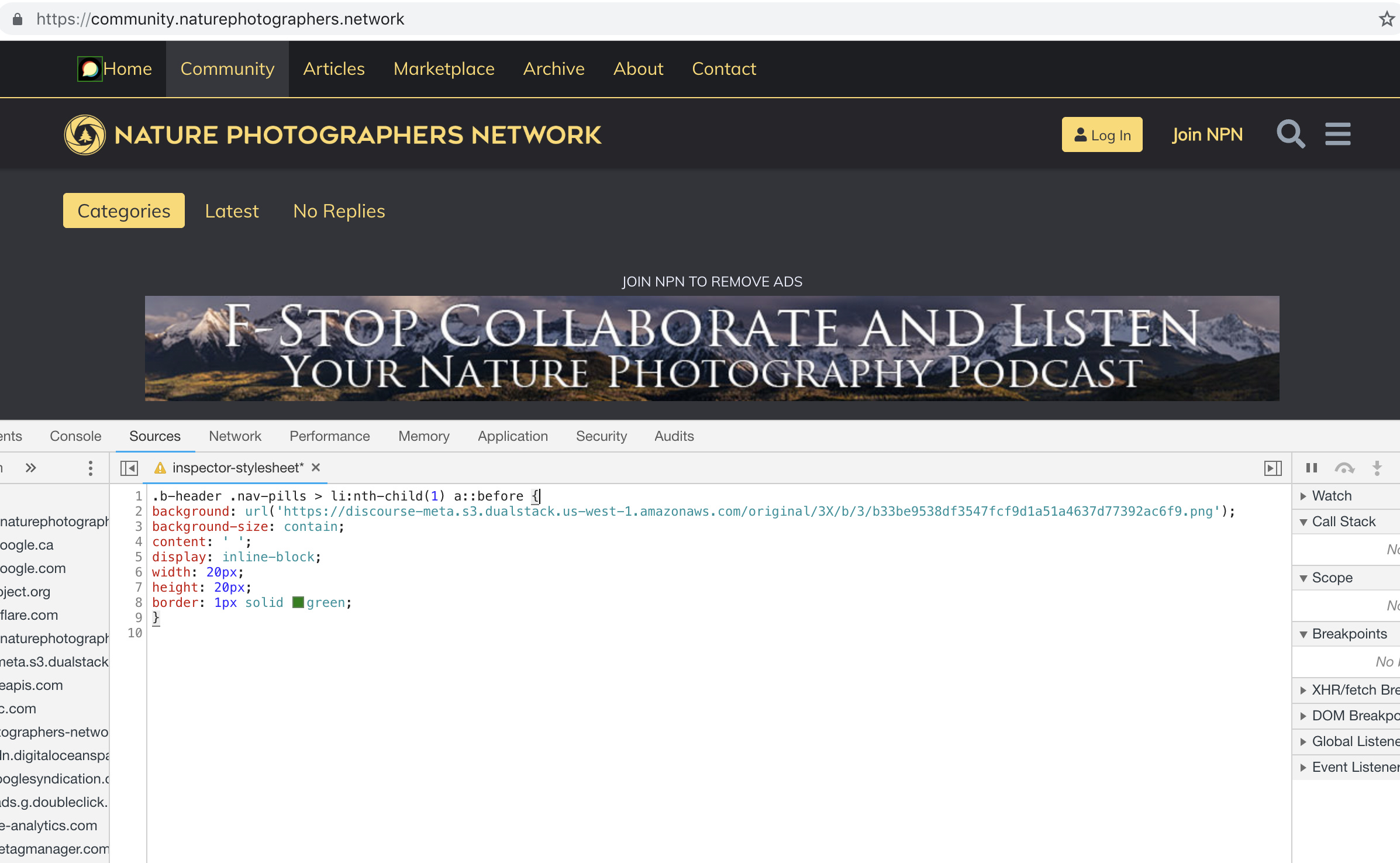
I’m trying to use this with the Brand Header Theme Component but not having any success with this:

.b-header .nav-pills > li:nth-child(1) a::before{
content: url(https://npn.sfo2.cdn.digitaloceanspaces.com/misc/home-solid.svg);
display: inline-block;
width: 20px;
height: 20px;}

I’ve also tried:

.b-header .nav-pills > li:nth-child(1) a::before {
display: block;
  content: ' ';
  background-image: url('https://npn.sfo2.cdn.digitaloceanspaces.com/misc/home-solid.svg');
  background-size: 20px 20px;
  height: 20px;
  width: 20px;
}

Anyone have ideas?

2 curtidas

Something is wrong with your SVG image. The screenshot below works with the Discourse logo, but not with that SVG file:

2 curtidas

It might be because the SVG doesn’t have any height/width defined (in the SVG markup itself, not the CSS)

Can you right click this one below, save it, and try again… I’ve added some dimensions to it.

home-solid

8 curtidas

This does seem to work, dare I ask how? Also, fill: does not seem to work on this to change the color, it just displays as black.

For reference, my code:

.b-header .nav-pills > li:nth-child(1) a::before {
display: inline-block;
content: ' ';
background: url('https://d11a6trkgmumsb.cloudfront.net/original/3X/a/6/a61b08e7f318170faee755cb6dcd48d6f6d7413d.svg');
background-size: contain;
height: 20px;
width: 20px;
border: 1px solid blue;
fill: blue;

}

2 curtidas