Добавление пользователей в группы через автоматизацию пользовательских полей

:bookmark: Это руководство объясняет, как автоматически добавлять пользователей в группы на основе выбора ими пользовательского поля при регистрации или обновлении профиля.

:person_raising_hand: Требуемый уровень доступа: Администратор

Краткое содержание

  1. Создайте необходимые группы
  2. Настройте пользовательское поле для пользователей
  3. Создайте автоматизацию для добавления пользователей в группы
  4. Протестируйте настройку

Создание групп

Сначала создайте группы, в которые пользователи должны автоматически добавляться:

  1. Перейдите в административную панель вашего сайта
  2. Перейдите в раздел «Группы» в боковой панели администратора или посетите /admin/groups
  3. Нажмите «Новая группа» для каждой группы, которую хотите создать
  4. Убедитесь, что для каждой группы указано «Полное имя», так как скрипт автоматизации использует его

:information_source: Скрипт автоматизации сопоставляет значение пользовательского поля пользователя с полным именем группы. Убедитесь, что полное имя каждой группы точно соответствует соответствующему варианту пользовательского поля (например, если вариант в выпадающем списке — «cat», то полное имя группы должно быть «cat»).

Настройка пользовательского поля для пользователей

Далее создайте пользовательское поле, из которого пользователи будут выбирать:

  1. Перейдите в административную панель вашего сайта
  2. Перейдите в раздел «Поля пользователей» в секции «Сообщество» боковой панели администратора или посетите /admin/config/user-fields
  3. Нажмите «Добавить поле пользователя»
  4. Настройте поле с соответствующими вариантами

Вот пример того, как может выглядеть ваше пользовательское поле:

:information_source: Используйте тип поля выпадающий список с заранее определенными вариантами, которые точно соответствуют полным именам ваших групп. Поля свободного текста могут привести к несоответствиям. Если используется тип поля подтверждение, значение будет «true» или «false», поэтому полное имя группы должно быть установлено соответствующим образом.

Создание автоматизации

Теперь настройте автоматизацию для добавления пользователей в группы на основе их выбора в пользовательском поле:

  1. Перейдите в административную панель вашего сайта
  2. Перейдите в раздел «Плагины > Автоматизация» в боковой панели администратора или посетите /admin/plugins/automation
  3. Нажмите «Добавить автоматизацию»
  4. Выберите скрипт «Добавить пользователя в группу через пользовательское поле»
  5. Выберите триггер:
    • «Первый вход пользователя» для добавления пользователей в группы при регистрации
    • «Периодический» для запуска по расписанию, позволяя пользователям со временем менять группы
  6. Выберите ваше пользовательское поле из выпадающего списка
  7. Настройте параметры автоматизации и обязательно включите её

Вот пример того, как может выглядеть ваша настройка автоматизации:

:mega: Автоматизация включает выпадающий список для выбора ваших существующих пользовательских полей, что упрощает настройку и снижает вероятность ошибок.

Тестирование настройки

Чтобы убедиться, что всё работает правильно:

  1. Зарегистрируйтесь как новый пользователь или обновите профиль существующего пользователя
  2. Выберите вариант из созданного вами пользовательского поля
  3. Завершите процесс регистрации или обновления профиля

Вот пример того, как пользовательское поле может отображаться при регистрации:

После запуска автоматизации вы должны увидеть, что пользователь добавлен в соответствующую группу:
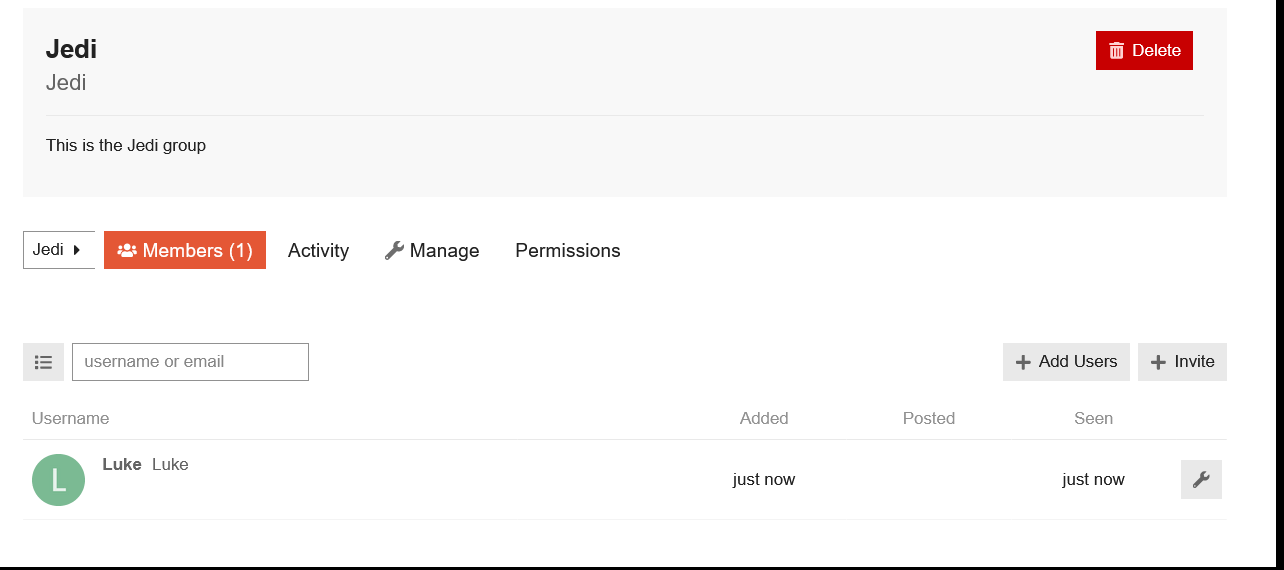
Часто задаваемые вопросы

В: Может ли эта автоматизация добавлять пользователей в основные группы?
О: По умолчанию эта автоматизация добавляет пользователей во вторичные группы. Чтобы установить группу как основную, перейдите на страницу настроек «Управление > Членство» группы и выберите «Автоматически устанавливать как основную группу».

В: Как часто запускается автоматизация, если я выберу триггер «Периодический»?
О: Вы можете задать частоту при создании автоматизации. Выберите расписание, которое лучше всего соответствует потребностям вашего сообщества.

В: Что произойдет, если пользователь изменит свой выбор в пользовательском поле?
О: Если вы настроили периодическую автоматизацию, она добавит пользователя в новую группу на основе его обновленного выбора при следующем запуске. Однако автоматизация не удаляет пользователей из их предыдущей группы — она только добавляет. Вам потребуется вручную управлять удалением из групп при необходимости.

В: Как автоматизация узнает, в какую группу добавить пользователя?
О: Автоматизация сопоставляет значение пользовательского поля пользователя с полным именем каждой группы. В настройках автоматизации нет явного выбора группы — сопоставление происходит автоматически на основе полного имени.

Дополнительные ресурсы

15 лайков

This Automation has now been tweaked to include a dropdown to select your existing User Custom Fields from. :partying_face:

No more rooting around in the user custom field json trying to find an id number, or any awkward typos snarling things up. Just super smooth and friendly UI. :sunglasses:

7 лайков

Pls the automation can only add users to the secondary group, what should I do if I want to add him to the primary group?

I think this would be set on the group’s Manage/Membership setting page where you can select ‘Automatically set as primary group’.

2 лайка

What am I missing?

Did all of this but it is not working as expected after testing.

Do you need to match the “full name” of the group to the automation name option? i.e. I see no option to pick the group you want to the user to be added to on trigger event.

I’m missing a step or something is not clicking in my head.

2 лайка
3 лайка

Thanks, and so deleted all previous setups, sync name fields and tested signup. Still no success.

To confirm, you use the Group “full name” not the @name?

To add, I also changed the automation to recurring so I could trigger the automation manually and this also has not worked.

I just created everything from scratch:

  1. My custom user field “Pet team”:

  2. The new groups: Name “cat-lovers”, Full name “cat” and Name “dog-lovers”, Full name “dog”

  3. The automation: (I chose every 1 minute for fast testing)

  4. Testing

    1. Choosing “cat” for “Pet team” in my profile preferences
    2. Checking the group membership:
    3. Choosing “dog” for “Pet team” in my profile preferences
    4. Checking the group membership:
2 лайка

I was originally going to post a new topic “how to filter user signup before : after” so all new users from X day go into X group

However, I found this topic and decided it was what I needed.

The difference in my use case is to your example (thank you again) which is possibly even simpler, there is no need for multi chocie so the user only have to tick a “confirmation” :white_check_mark: and that confirmation field fix the users to X group

1 лайк

Also I can see the test user and the X filed = true in the user profile, so that works on signup.

AS outlined above in my case use there is only cat option and it is assigned by “confirmation” click, it is a mono filter requirement.

Maybe I’ll try force it using drop down instead and see if it works.

I also got a working automation using a confirmation custom user field.

1 лайк

Ok that was it, I changed custom user field to dropdown with only one option and it worked.

I can not replicate! :grinning:

1 лайк

Does this help? Maybe you can spot the difference

The user field


The automation

The group

2 лайка

Your Group name is “true” ?

Yes, it must match the value of the custom user field. A confirmation field is either ‘true’ or ‘false’.

3 лайка

Ok, that is what I was thinking was going on.

It strikes me then you are then limited to one group called “true” and you can never user that “confirmation” approach again.

I will run with the drop down for now as I might want to change the group filter on say an annual basis, i.e. a group for each year.

Finally, if I can suggest to the makers of the automation, to perhaps consider a more explicit step and thus field, to specify the intended user group that is the target of your filter, as this implied part of the setup has caused me a lot of confusion and time as it probably as others.

Thank for all your help and exposé @Moin

3 лайка

I noticed some mistakes in the documentation:

Actually, user fields are located in the community section of the admin sidebar.

Automation is implemented as a plugin, so you will find it under Plugins rather then under Customize.

In general, the screenshots and the navigation seem a little outdated. Also, the common term seems to be “custom user field,” and this guide often uses “user custom field” instead.

Some time ago, I suggested an alternative version that reflects most of these points. I’m sharing it here now so it can help someone in case they’re struggling with these aspects.

My draft

:bookmark: This guide explains how to automatically add users to groups based on their selection of a custom user field during signup or profile update.

:person_raising_hand: Required user level: Administrator

Summary

  1. Set up a custom user field
  2. Create the necessary groups
  3. Create an automation to add users to groups
  4. Test the setup

Setting up the custom user field

First, create a custom user field that users will select from:
(There is also a detailed guide on user fields)

  1. Go to your site’s Admin area
  2. Navigate to User fields using the link in the community section of the admin sidebar or by visiting /admin/config/user-fields
  3. Click “Add user field”
  4. Set up the field with appropriate options

Here’s an example of how your user field might look:

:information_source: The automation assigns users to a group if their input in the custom field exactly matches a group’s full name. To ensure accuracy, use a dropdown with predefined options that match group names exactly. Free text fields can cause mismatches. If using a confirmation field, groups need to be named ‘true’ or ‘false’.

Creating the groups

Next, create the groups you want users to be automatically added to:
(There is also a detailed guide on creating groups)

  1. Go to Groups by using the link in the admin sidebar or adding /g or /groups to your forum’s URL.
  2. Click “New Group” for each group you want to create
  3. Make sure to add a “Full Name” for each group, as the automation script uses this

:information_source: The automation script uses a group’s Full Name, so ensure it exactly matches the input in the custom user field.

Creating the automation

Now, set up the automation to add users to groups based on their custom user field selection:

  1. Go to your site’s Admin area
  2. Navigate to Plugins > Automation
  3. Click “Add automation”
  4. Select “Add user to group through User Custom Field” as the script
  5. Add a name
  6. Choose a trigger:
    • “User first logged in” to add users to groups at signup
    • “Recurring” to run on a schedule, allowing users to change groups over time
  7. Choose your user custom field from the dropdown menu
  8. Don’t forget to enable your automation

Here’s an example of how your automation setup might look:

Testing the setup

To ensure everything is working correctly:

  1. Sign up as a new user or update an existing user’s profile
  2. Select an option from the custom user field you created
  3. Complete the signup or profile update process

Here’s an example of how the user field might appear during signup:

After the automation runs, you should see the user added to the appropriate group:

FAQs

Q: Can this automation add users to primary groups?
A: By default, this automation adds users to secondary groups. To set a group as primary, go to the group’s Manage > Membership settings page and select “Automatically set as primary group”.

Q: How often does the automation run if I choose the “Recurring” trigger?
A: You can set the frequency when creating the automation. Choose a schedule that best fits your community’s needs.

Q: What happens if a user changes their custom user field selection?
A: If you’ve set up a recurring automation, it will update the user’s group membership based on their new selection during the next run.

Q: Can I use more than one automation based on a confirmation fields?
A: Yes! While both groups’ full names must be ‘true’ or ‘false’, you can create multiple groups with different names to distinguish them. When setting up the automation, simply select the respective custom field for each one.

Additional resources

If I updated the documentation now, I would also add that there are issues when using a multi-select custom user field

4 лайка

I have this set up, and noticed that when the user changes their preference in the user field dropdown, it does not remove them from the initial group they selected, but it does add them to the new group they selected. Is that the expected behavior?

That is, once the user is added to the group, is there no way to then remove them from the group via the automation?

1 лайк

System still not working at all for me, when the custom user field is a dropdown with multiple options

1 лайк